Step 1: Import a device to an existing Cluster
BOS-vBIGIP02.termmarc.com (10.1.10.10) is currently NOT managed by BIG-IQ CM, however it is in the same Device Service Cluster (DSC) with BOS-vBIGIP01. We will be adding this device to BIG-IQ.
Log in to the BIG-IQ system with your user name (admin) and password (admin).
On the top menu bar, select Devices from the BIG-IQ menu.
On the left-hand menu bar, click BIG-IP Devices.
Click the Add Device button in the main pane.
- In the IP Address field, type the IP address of the device: 10.1.10.10
- In the User Name and Password fields, type the user name (admin) and password (admin) for the device.
- Cluster Display Name: Use Existing.
- Select a Cluster: BostonCluster
- Leave everything else default.
| Name | Value |
|---|---|
IP Address |
10.1.10.10 |
username |
admin |
password |
admin |
Cluster Display Name |
Use Existing |
Select A Cluster |
Boston Cluster |
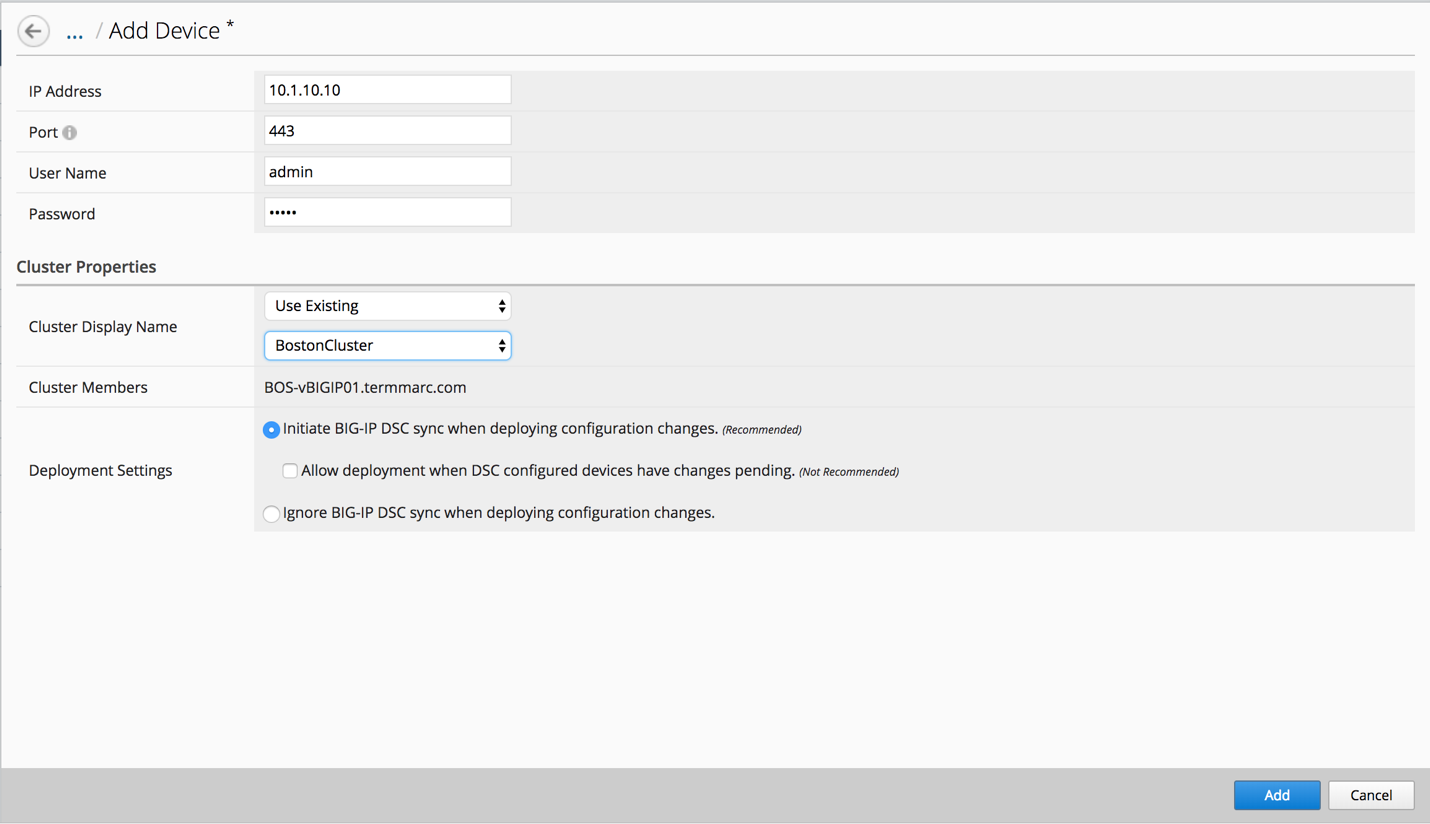
Click the Add button to add this device to BIG-IQ.
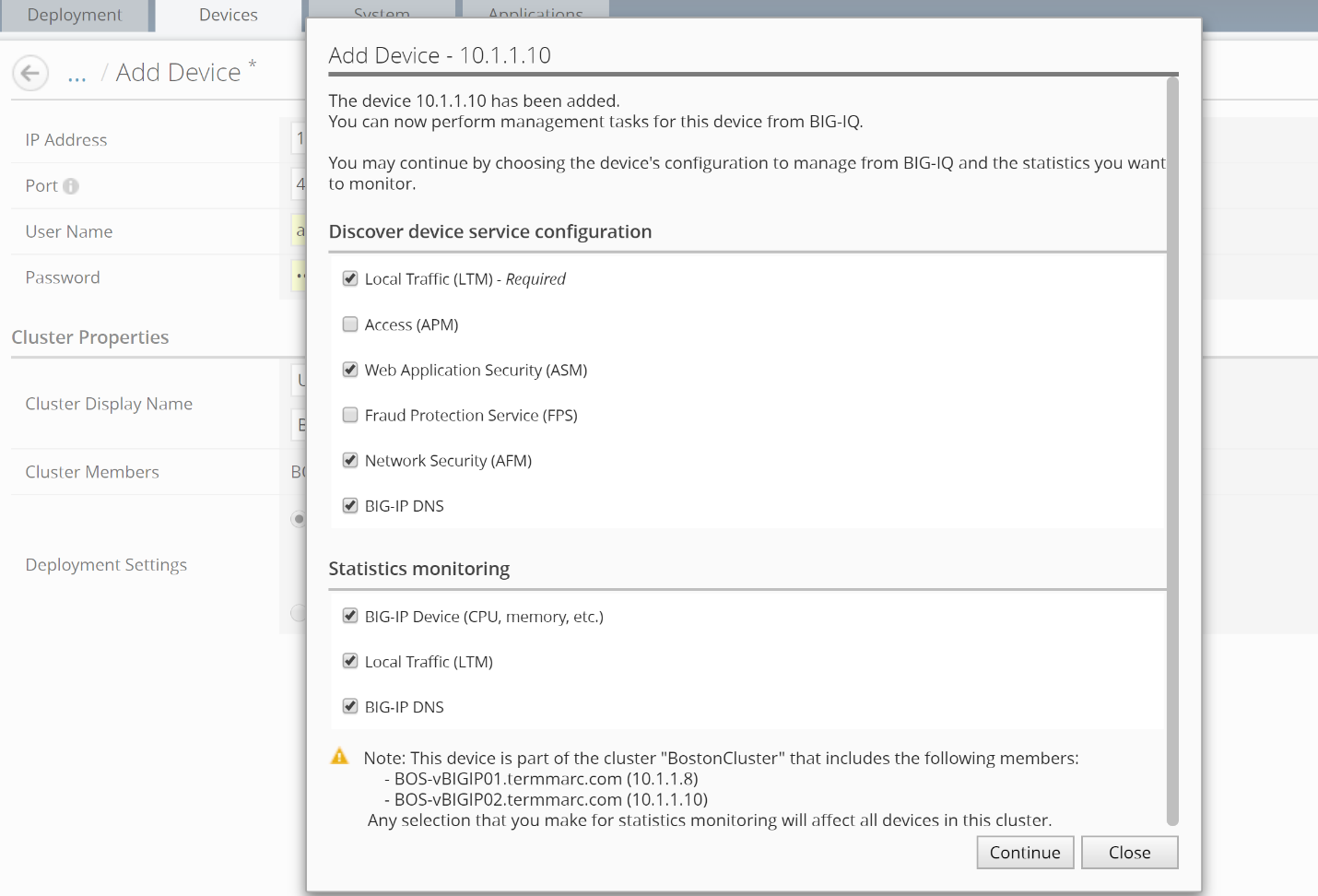
BIG-IQ now exchanges certs with the BIG-IP and pops up a window for the administrator to select which modules to manage from BIG-IQ. For this device, select LTM, ASM, AFM and DNS Services. Keep the Statistics monitoring boxes all checked, and then click the Continue button.
The discovery process will start, and you should see a screen similar to the following screenshot. At this point, BIG-IQ is using REST calls to the BIG-IP to pull the selected parts of the BIG-IP configuration into BIG-IQ.
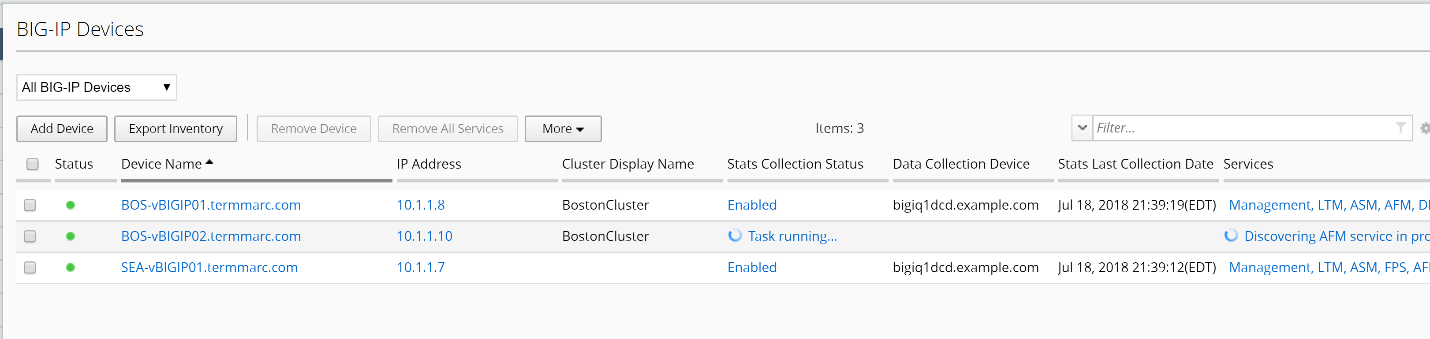
Allow the import jobs to complete. At this point, the configuration of the BIG-IPs that have been imported are not yet editable in BIG-IQ. To make the configurations editable in BIG-IQ, we need to complete the import tasks.