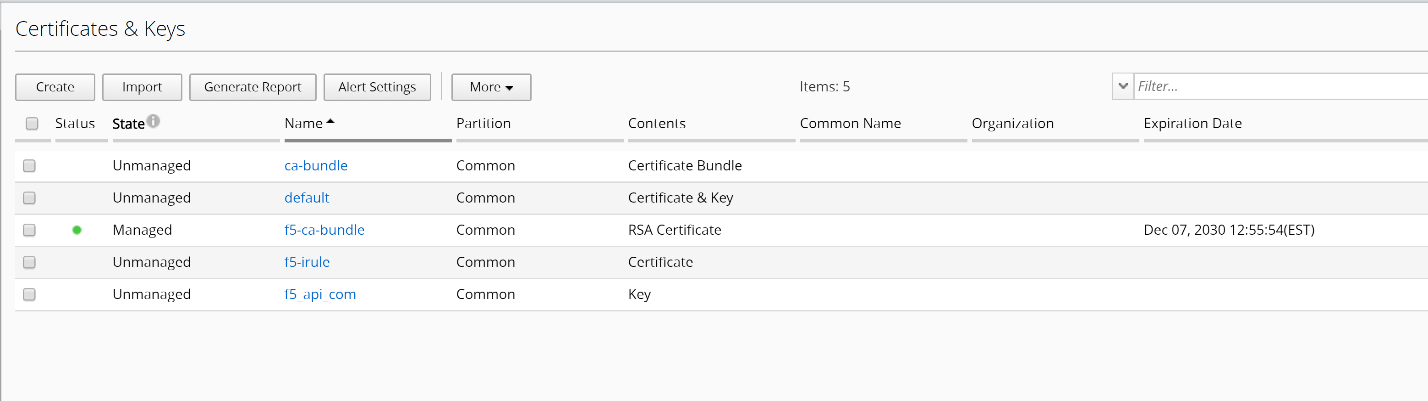
Module 1: Move a certificate from unmanaged to managed state
From the TMUI of the BIG-IQ Centralized Management system BIG_IQ_CM_v6.0.0:
- At the top of the screen, click Configuration.
- On the left, click LOCAL TRAFFIC > Certificate Management > Certificates & Keys. These are the imported from BIG-IP but not yet managed by BIG-IQ.
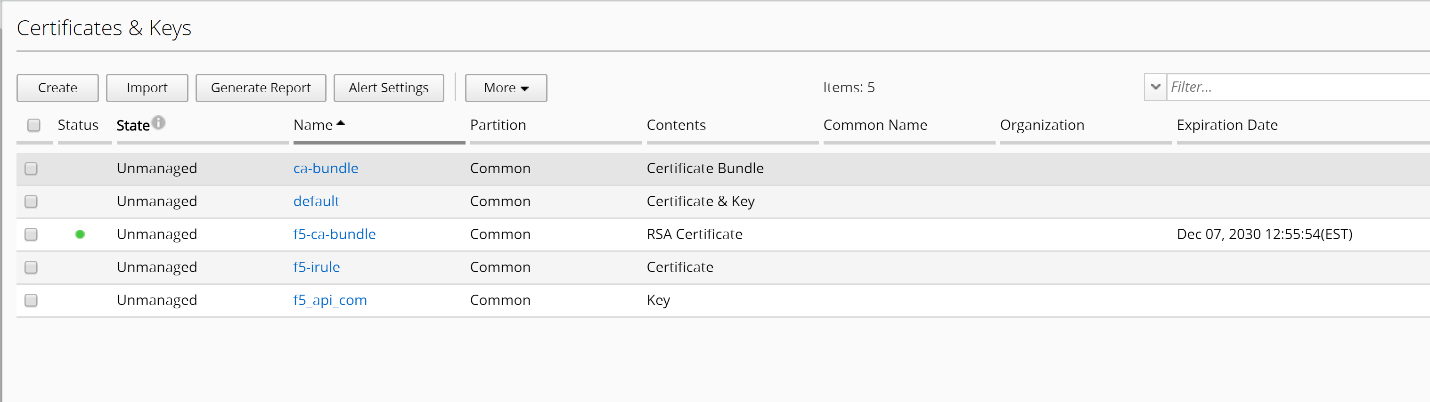
- Click the name of the unmanaged certificate f5-ca-bundle. You will need to import the certificate from the managed BIG-IP.
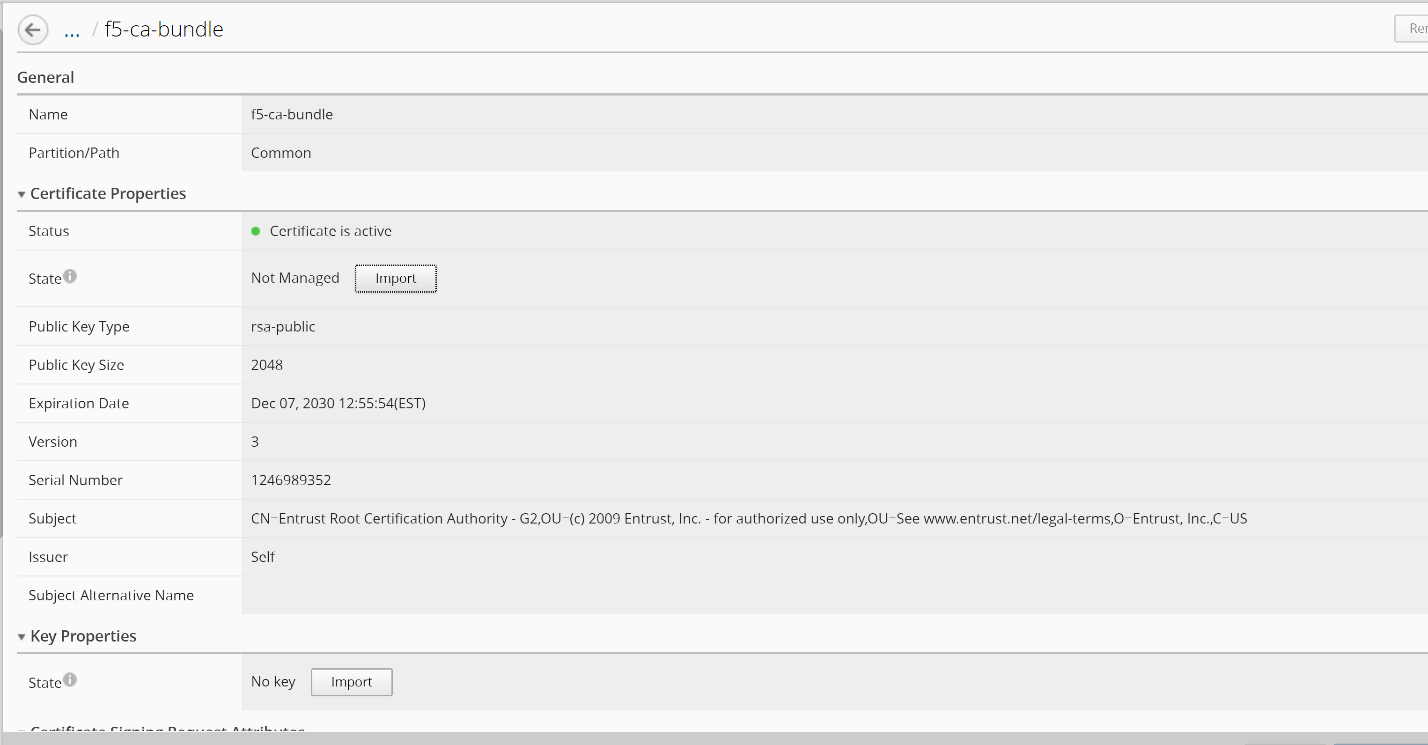
Before you can import the certificate to BIG-IQ, you will need to export certificate/key from the managed BIG-IP device.
- Log onto the TMUI interface of the BOS-vBIG-IP01.temmarc.com device to export the certificate/key pair.
Click System ›› Certificate Management ›› Traffic Certificate Management ›› SSL Certificate List ›› f5-ca-bundle
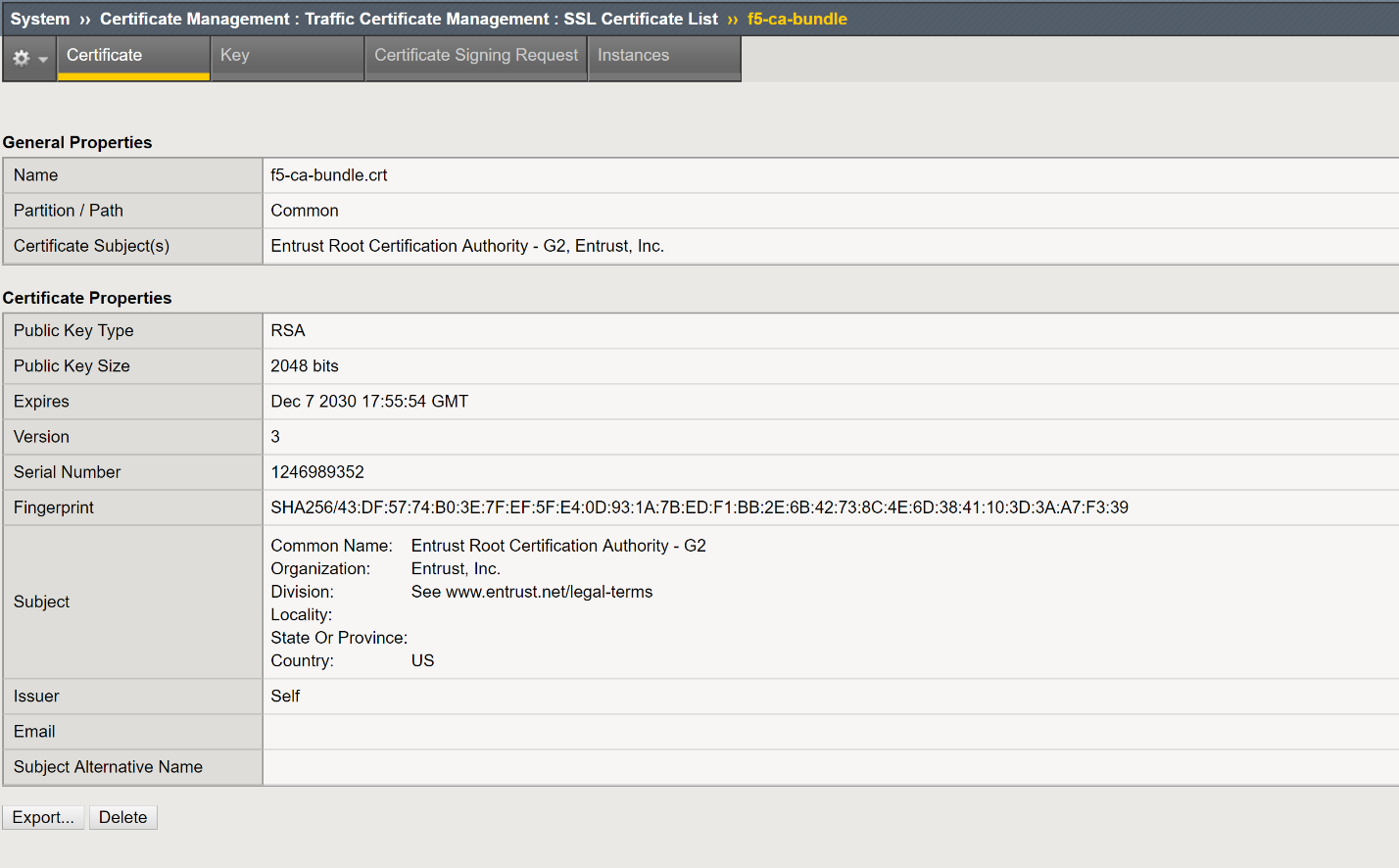
Click Export and then click on Download f5-ca-bundle.crt button to save the certificate to a file to a location that you can easily locate.
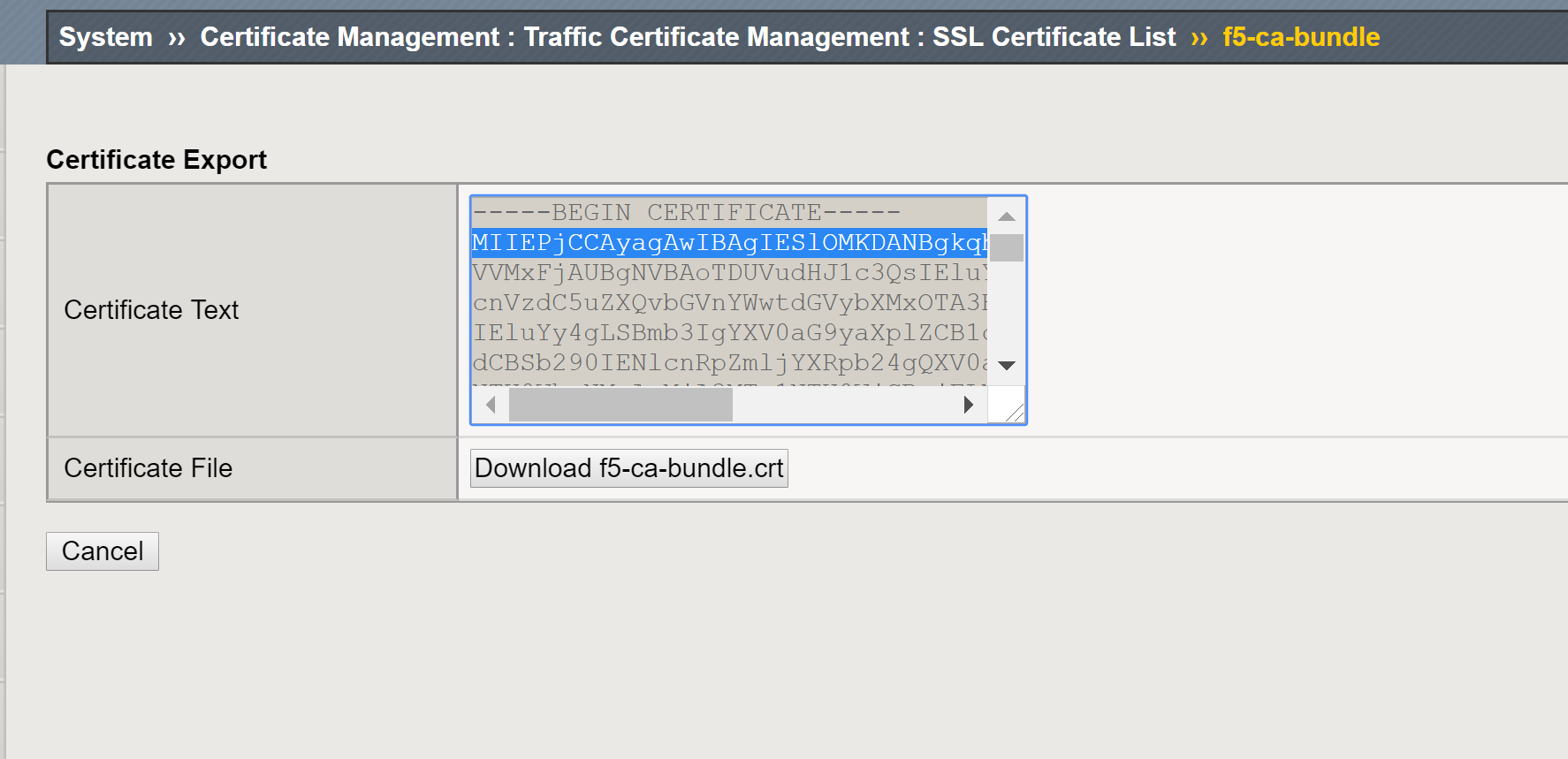
After saving the certificate file, click Cancel button to go back to previous screen.
- Now, circle back to the BIG-IQ CM TMUI and go back to the Certificate Properties: State setting, click the Import button and then:
- To upload the certificate’s file, select Upload File and click the Choose File button to navigate to the certificate file you saved before.
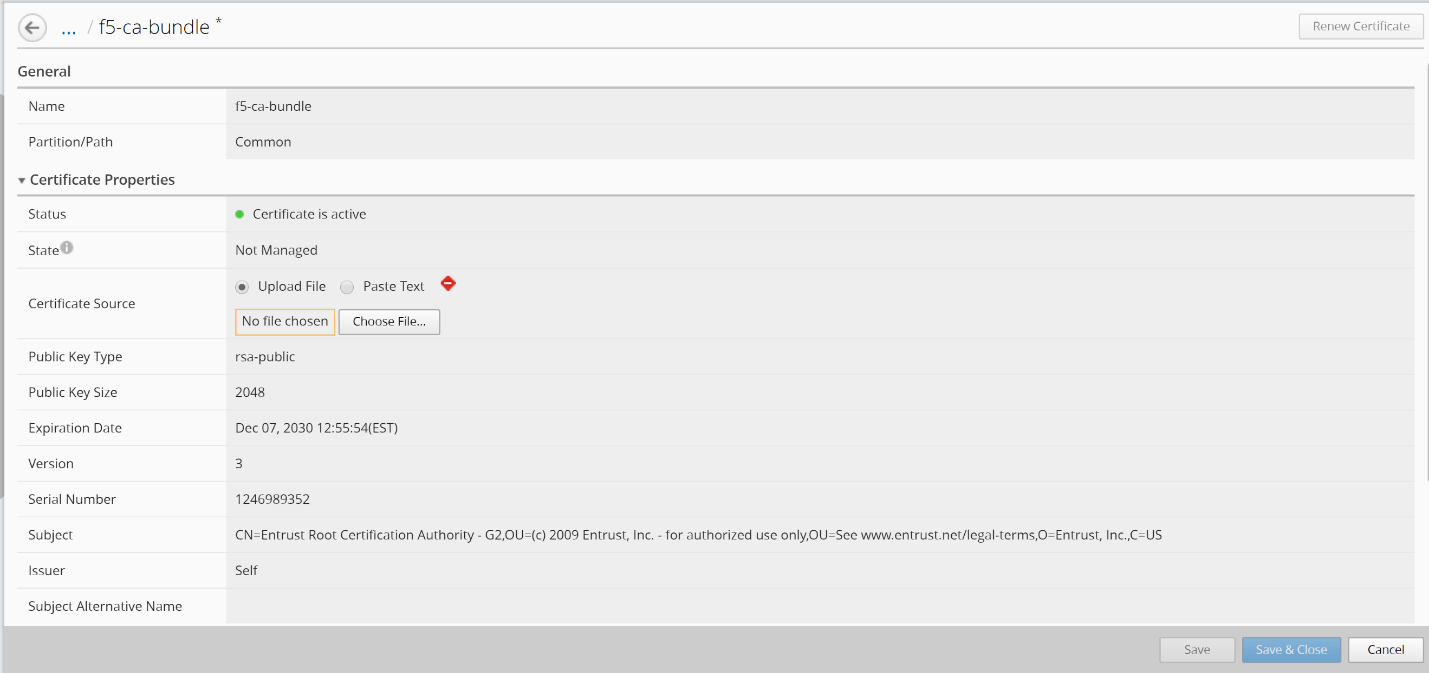
Since this is a bundled certificate/key pair, you do not need to separately import the key file.
- Click the Save & Close button. Your certificate/key pair is now Managed by BIG-IQ.