Lab 2.2: Create custom security policies & Application Service Template
****TASKS****
Create a custom ASM policy
- Logout of BIG-IQ (top right corner)
- Login as larry with password of larry
- Navigate to Configuration >> SECURITY >> Web Application Security >> Policies
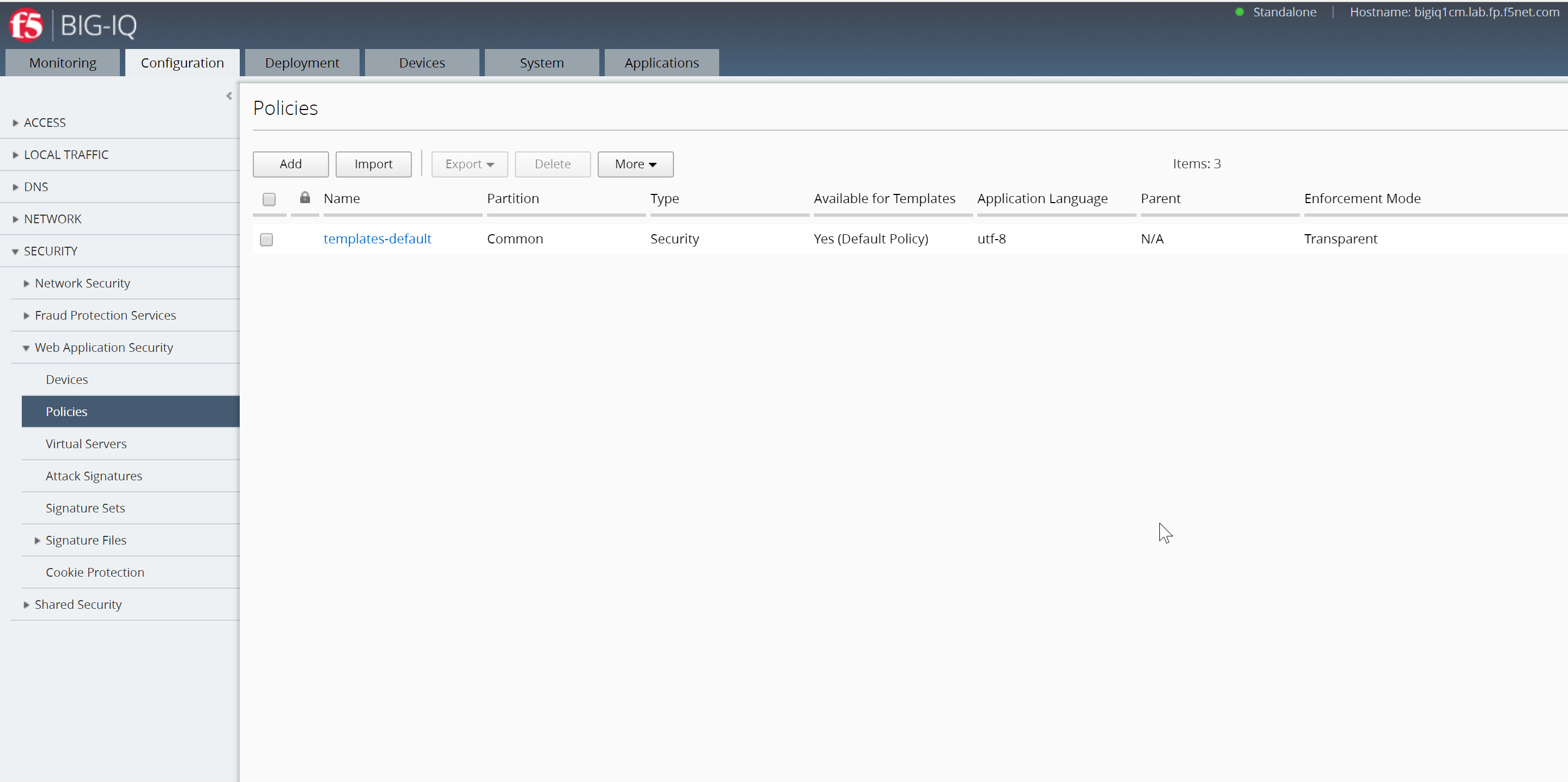
- Click on the ASM policy f5-asm-policy1 from the list and look through its settings. Notice the policy is in Transparent mode.
- Validate Learning Mode is set to Manual
- Check the box Make available in Application Templates
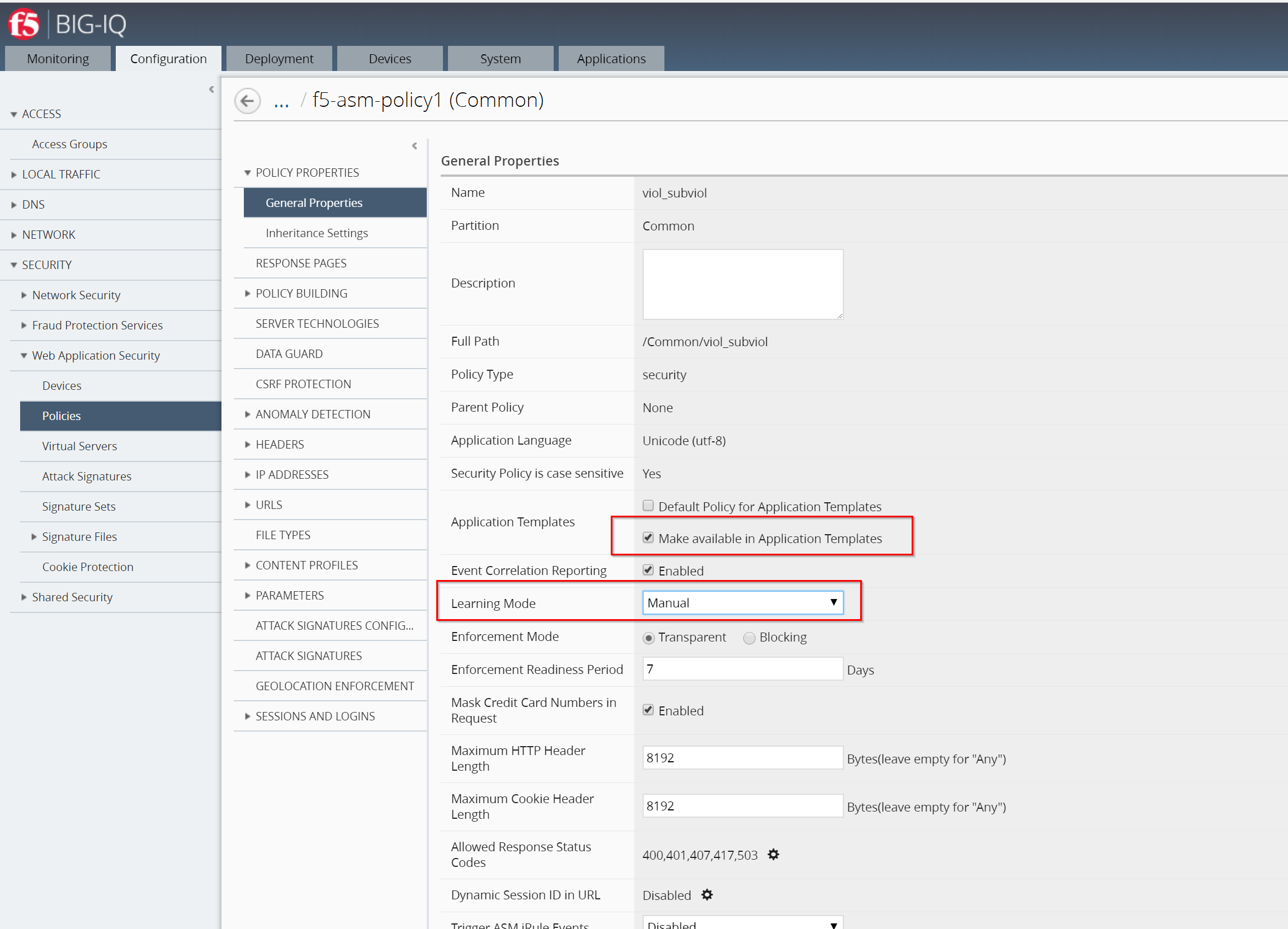
- Click Save Button (bottom right)
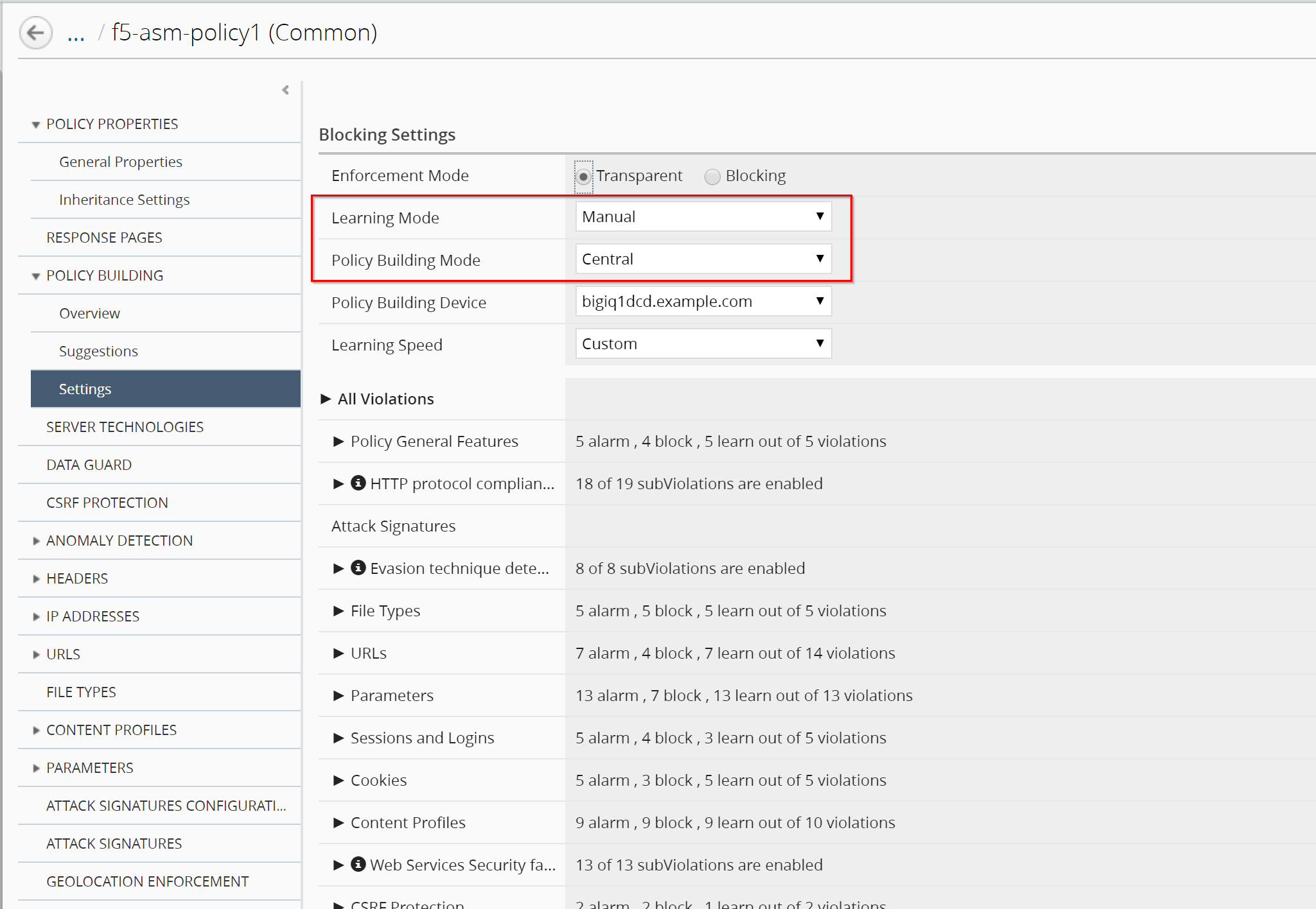
- While still editing the policy f5-asm-policy1, navigate to POLICY BUILDING >> Settings
- Change Learning Mode to Manual
- Change Policy Building Mode to Central
- Click Save & Close button (bottom right corner)
Warning
Ignore the unauthorized / denied error when saving the policy.
This is a known bug and will be resolved in the next BIG-IQ release.
****TASKS****
Create an AFM Policy
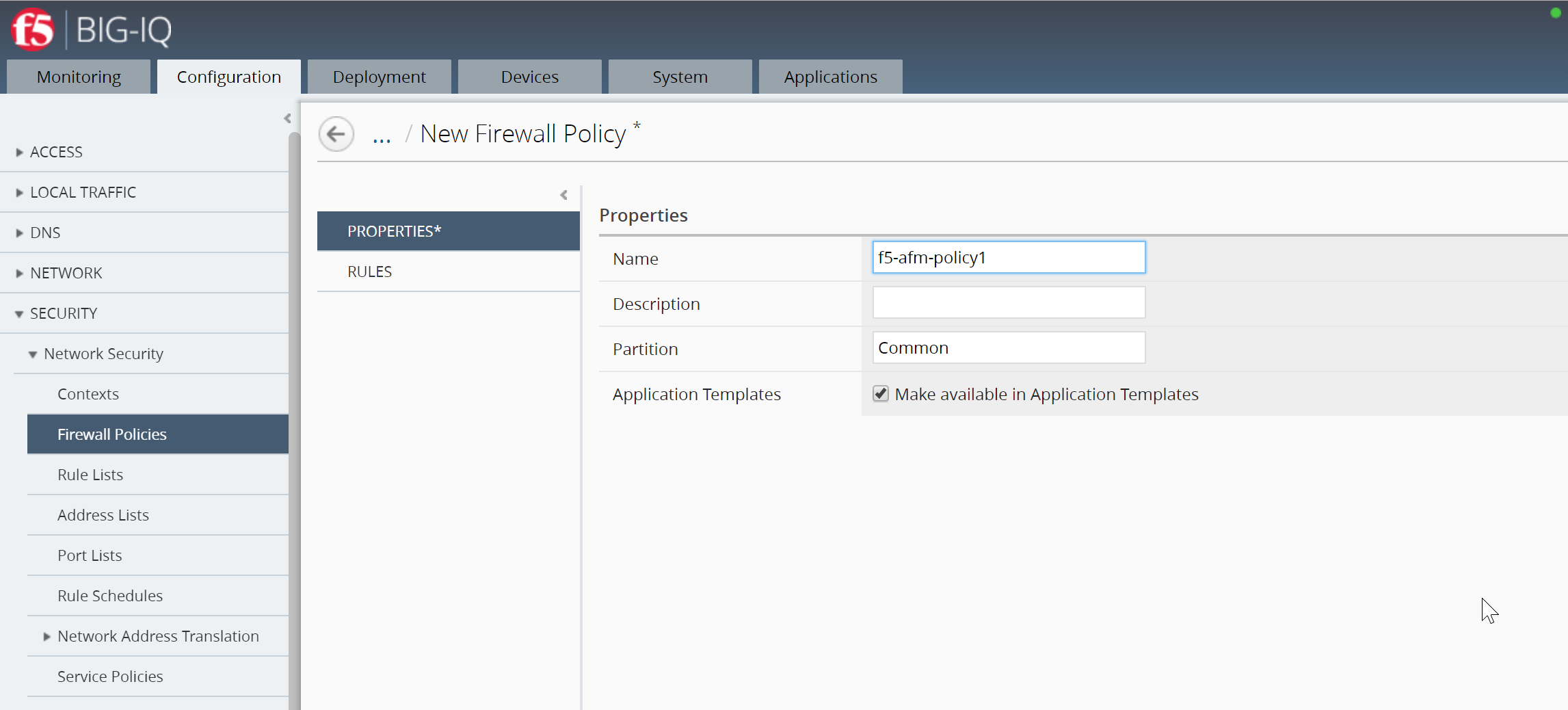
- Navigate to Configuration >> SECURITY >> Network Security >> Firewall Policies
- Click Create button
- Enter the name of your policy: f5-afm-policy1
- Make sure the box Make available in Application Templates is checked.
****TASKS****
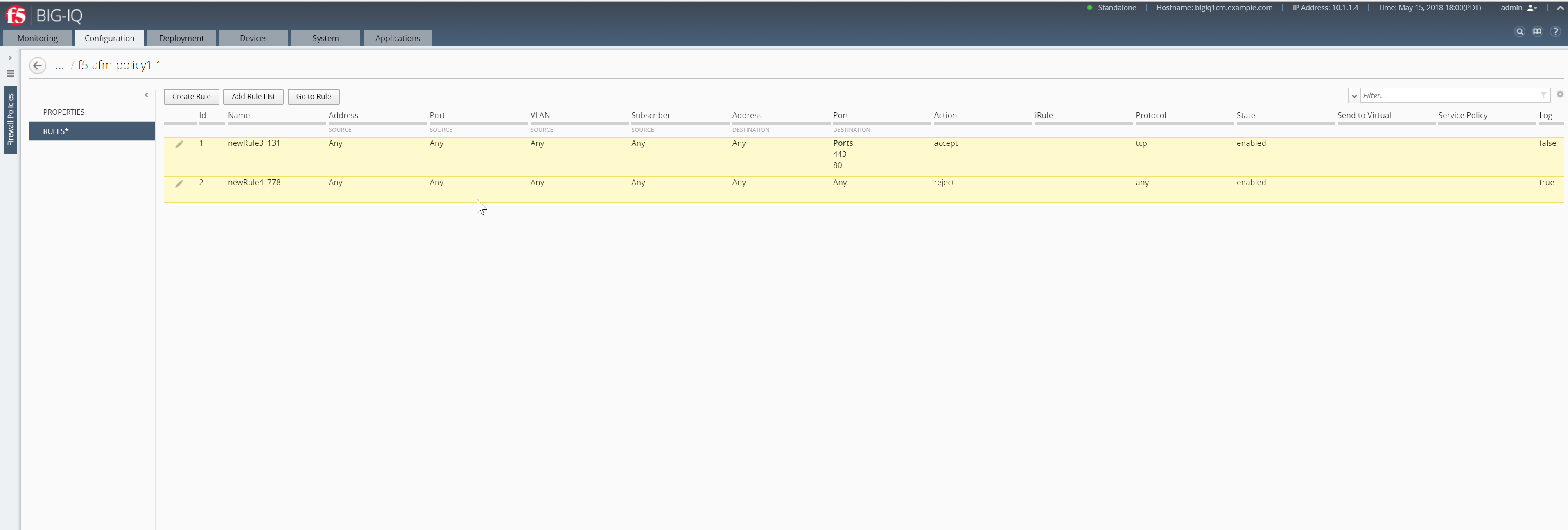
Create 2 Firewall Rules
- Click on RULES
- Click Create Rule button
- Click the little pencil icon on Rule id 1
- On the next step, do not mistakenly use Port SOURCE instead of Port DESTINATION
- Add 80 and 443 to Port Destination
- Set Protocol to tcp (use scroll bar in rule window to scroll right)
- Scroll back to the left side and click Update button on rule
- Click Create Rule (creating 2nd rule)
- Click the little pencil icon on Rule id 2
- Set Action to reject (use scroll bar in rule window to scroll right)
- Check Log checkbox (all the way to the right in the rule)
- Scroll back to the left side and click Update button on rule
- Click Save & Close button (bottom right corner)
****TASKS****
Create an App Service Catalog from a template
- Logout of BIG-IQ (top right corner)
- Login as marco with password of marco
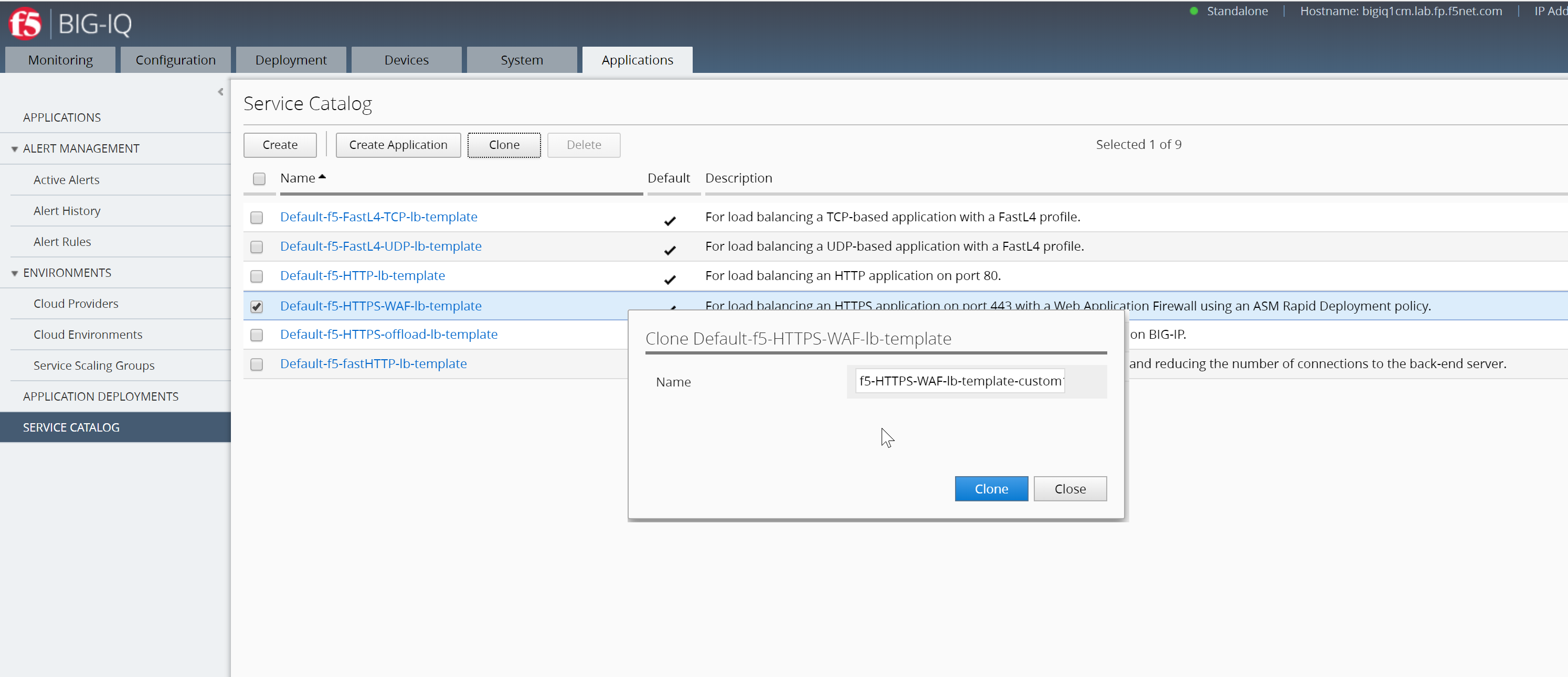
- Navigate to Applications >> SERVICE CATALOG
- Select Default-f5-HTTPS-WAF-lb-template
- Click the Clone button (top right)
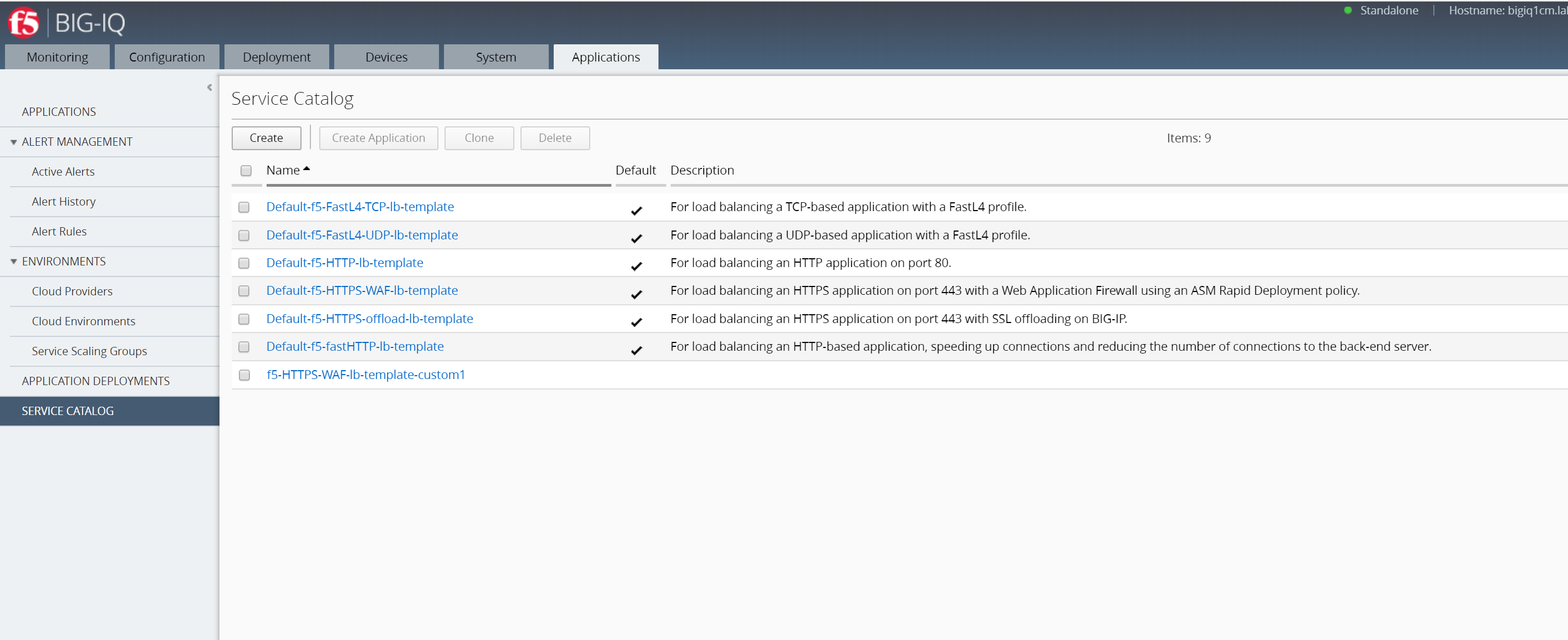
- Enter the name of your cloned template as f5-HTTPS-WAF-lb-template-custom1
- Click Clone button
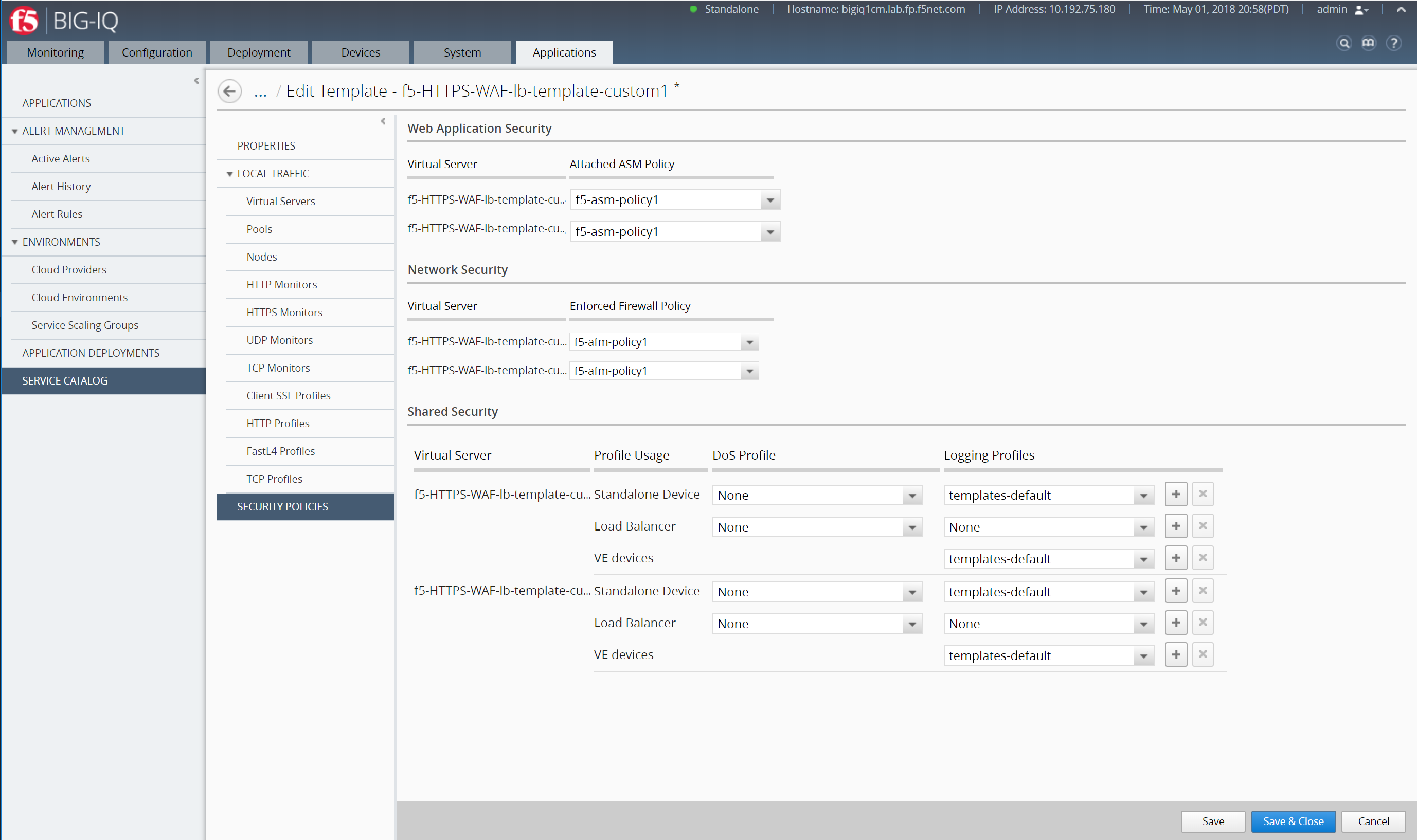
- While editing the template, navigate to SECURITY POLICIES
- Under Attached ASM Policy, select f5-asm-policy1 for both Virtual Servers in this template
- Under Enforce Firewall Policy, seelect f5-afm-policy1 for both Virtual Servers in this template
- Click Save buttom (bottom right)
- Navigate around in this template (left navigation) and review the Virtual Servers and Pools this template is configured to create for new apps.
****TASKS****
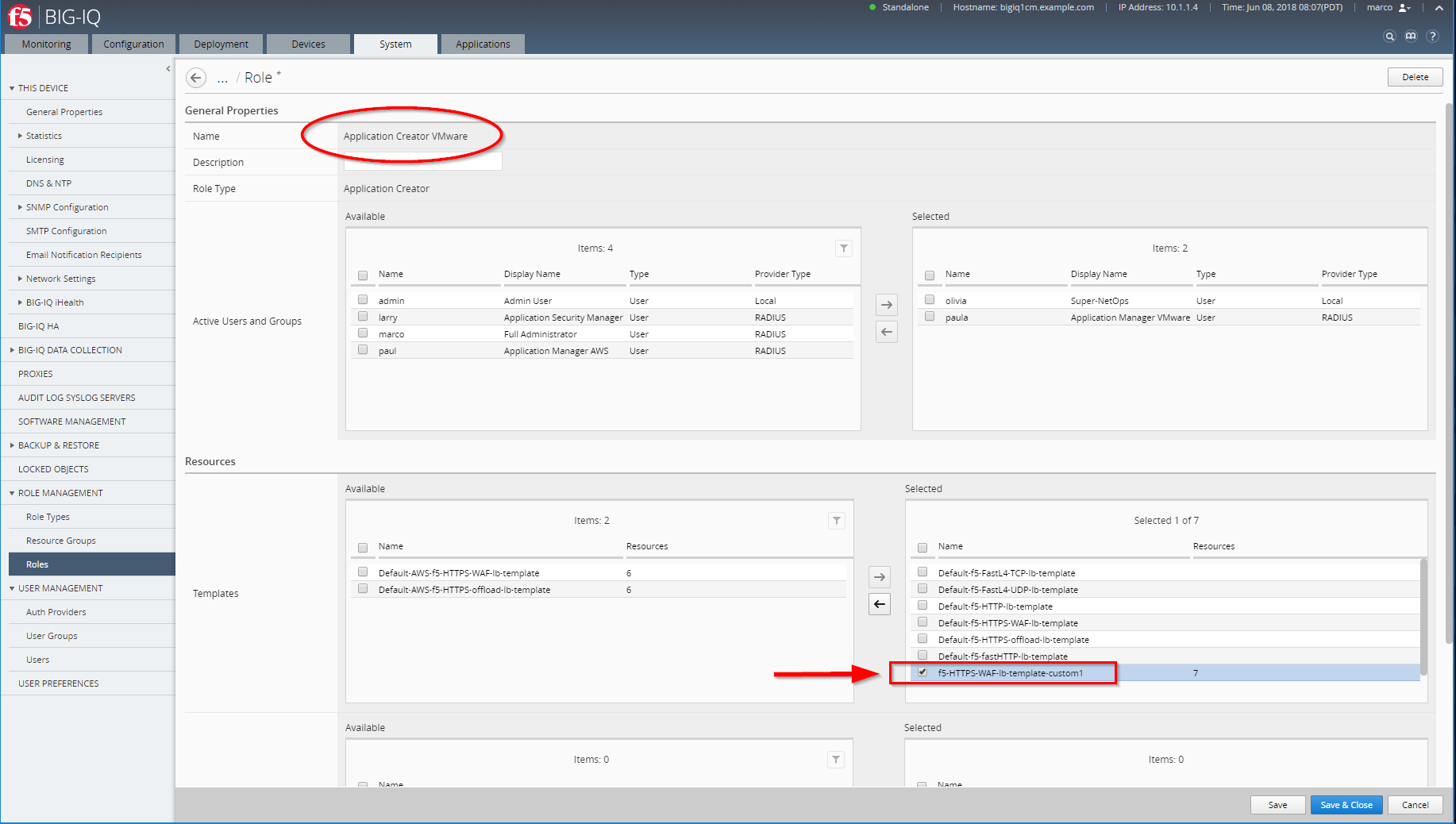
We need to give permission to the group that Paula belongs to access this new application template.
- Navigate to System (top tab) >> Role Management >> Roles
- Then navigate within that to CUSTOM ROLES >> Application Roles
- Click on Application Creator VMware role (already assigned to Paula)
- Select checkbox on Available Template f5-HTTPS-WAF-lb-template-custom1
- Push right arrow to move to Selected
- Click Save & Close button (bottom right corner)
Note
A DoS Profile could also be assign to the template but we are not using it for this lab.