Lab 2.3: Create Application
Create a new application
- Logout of BIG-IQ (top right corner)
- Login as paula with password of paula
- Navigate to Applications >> APPLICATIONS
- Click on Create button
- Select the template previously created f5-HTTPS-WAF-lb-template-custom1
Type in a Name for the application you are creating.
- Application Name:
site18.example.com
To help identify this application when you want to use it later, in the Description field, type in a brief description for the application you are creating.
- Description:
My First Application
Type the domain of your application
- Domain Names:
site18.example.com
For Device, select the name of the device you want to deploy this application to. (if the HTTP statistics are not enabled, they can be enabled later on after the application is deployed)
- BIG-IP: Select
SEA-vBIGIP01.termmarc.com
- Select the checkbox Collect HTTP Statistics
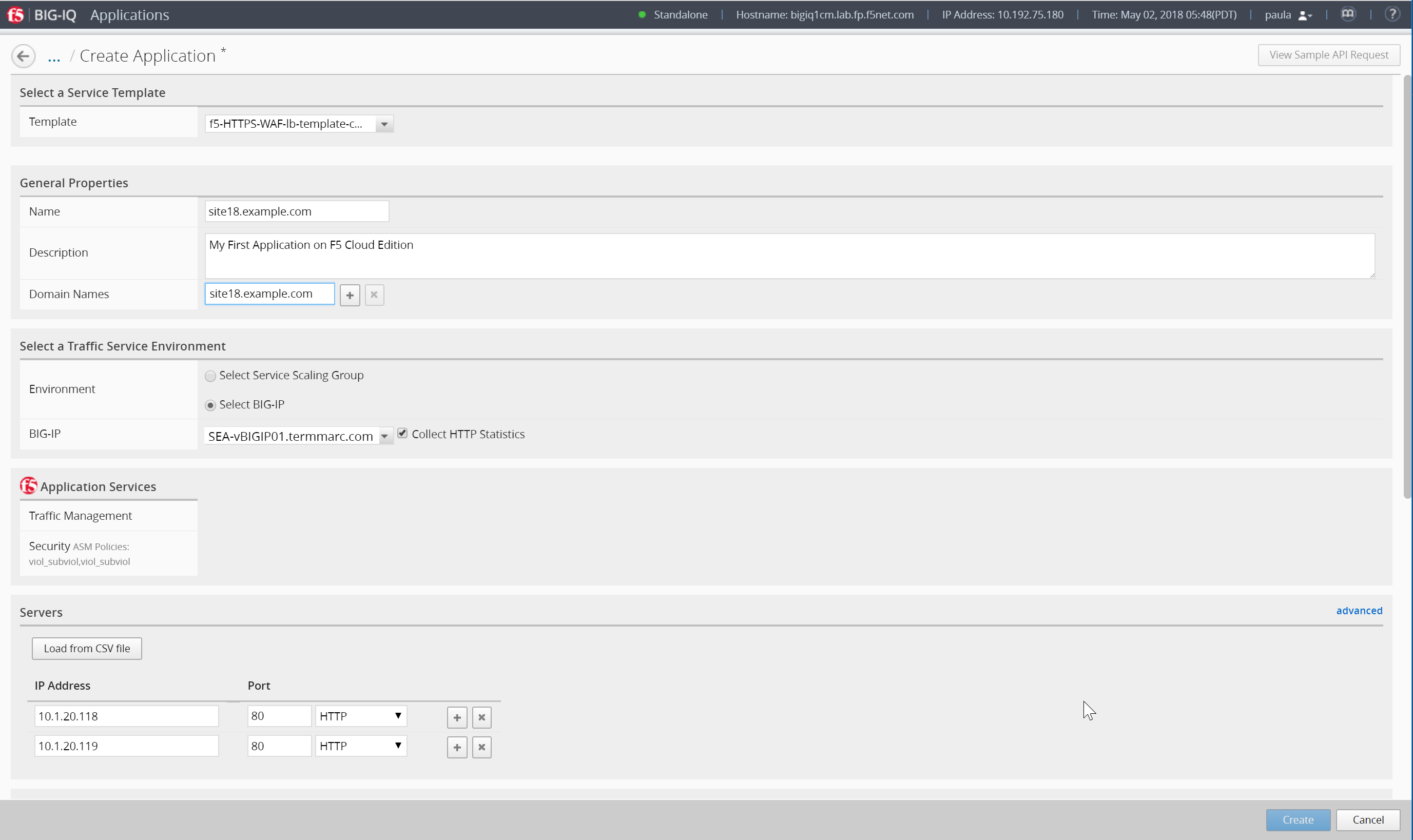
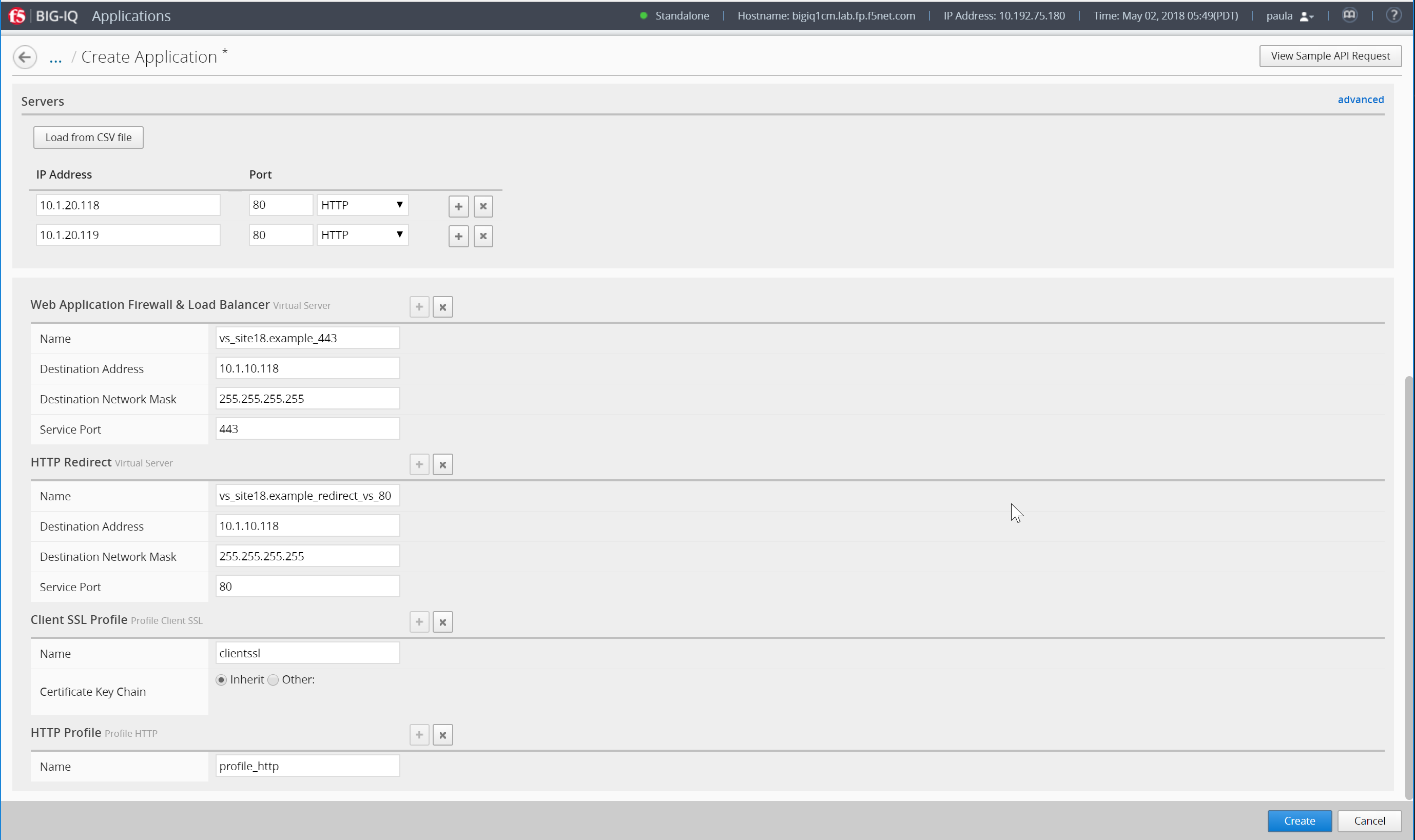
Determine the objects that you want to deploy in this application. To omit any of the objects defined in this template, click the (X) icon that corresponds to that object. To create additional copies of any of the objects defined in this template, click the (+) icon that corresponds to that object.
In the example, fill out the Server’s IP addresses/ports (nodes) and virtual servers names, IPs and ports.
- Servers (Pool Member):
10.1.20.118and10.1.20.119 - Service Port:
80 - Name WAF & LB (Virtual Server):
vs_site18.example.com_https - Destination Address:
10.1.10.118 - Destination Network Mask:
255.255.255.255 - Service Port:
443 - Name HTTP Redirect (Virtual Server):
vs_site18.example.com_redirect - Destination Address:
10.1.10.118 - Destination Network Mask:
255.255.255.255 - Service Port:
80
It is good practice to type the Prefix that you want the system to use to make certain that all of the objects created when you deploy an application are uniquely named.
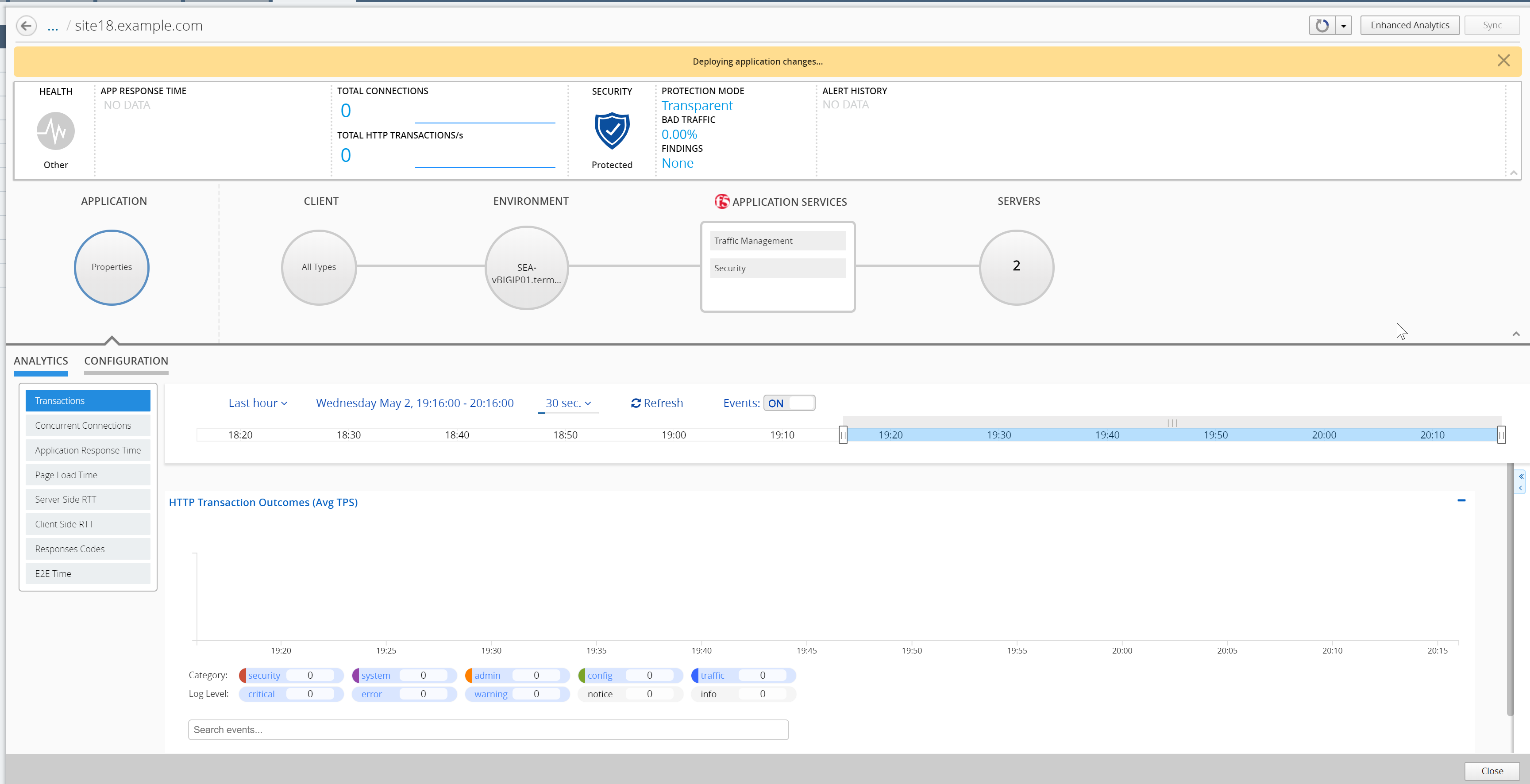
Then Click on Create (bottom right). The Application configuration will then deploy to the BIG-IP. This will take a few minutes.
Note
In case the Application fails, connect as Marco and go to Applications >> Application Deployments to have more details on the failure. You can retry the deployment in the event of a failure.
In Paula’s Dashboard, she can see her Application.
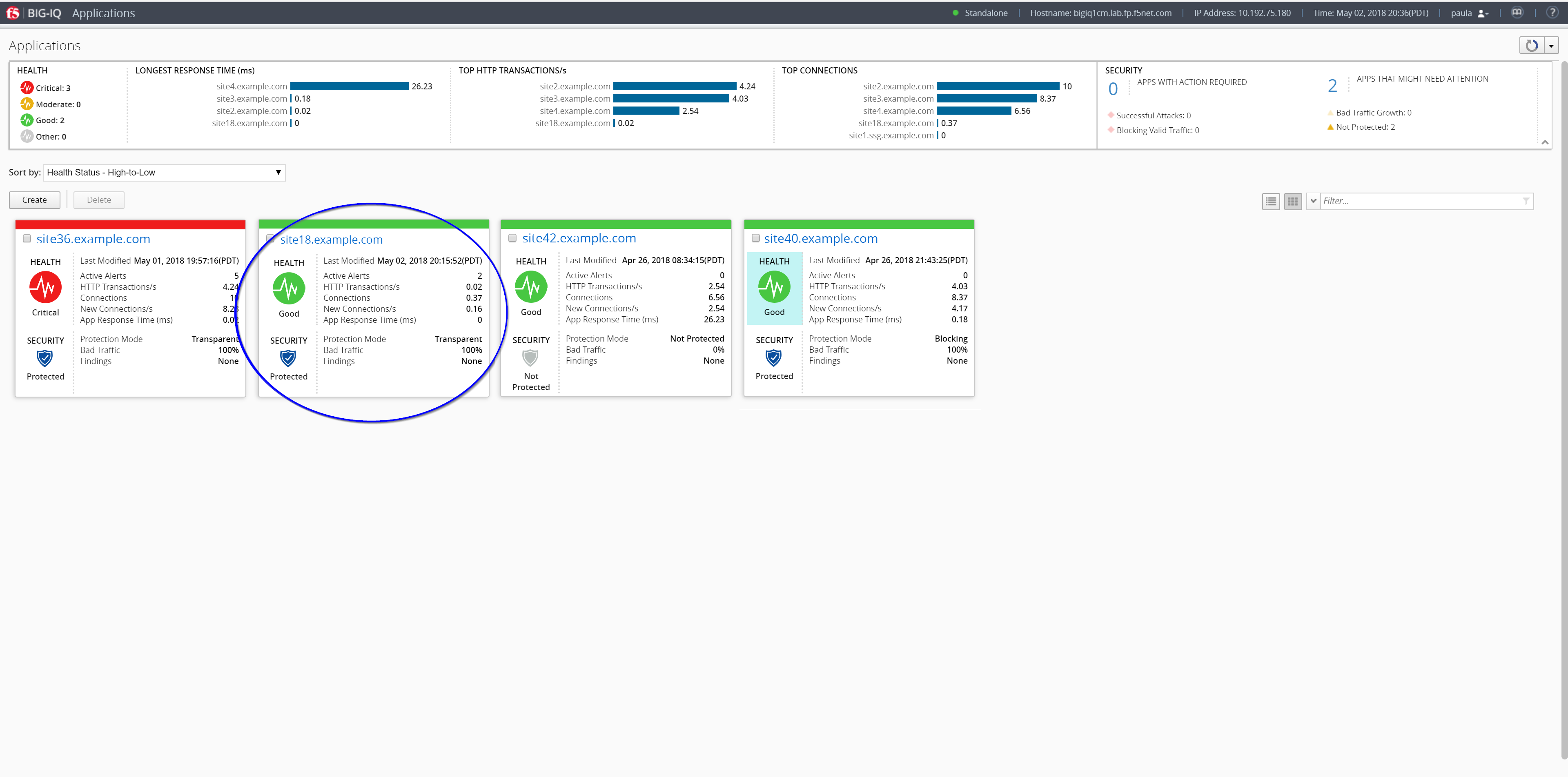
Click on the Application and check the details (alarms, security enabled, configuration, …)
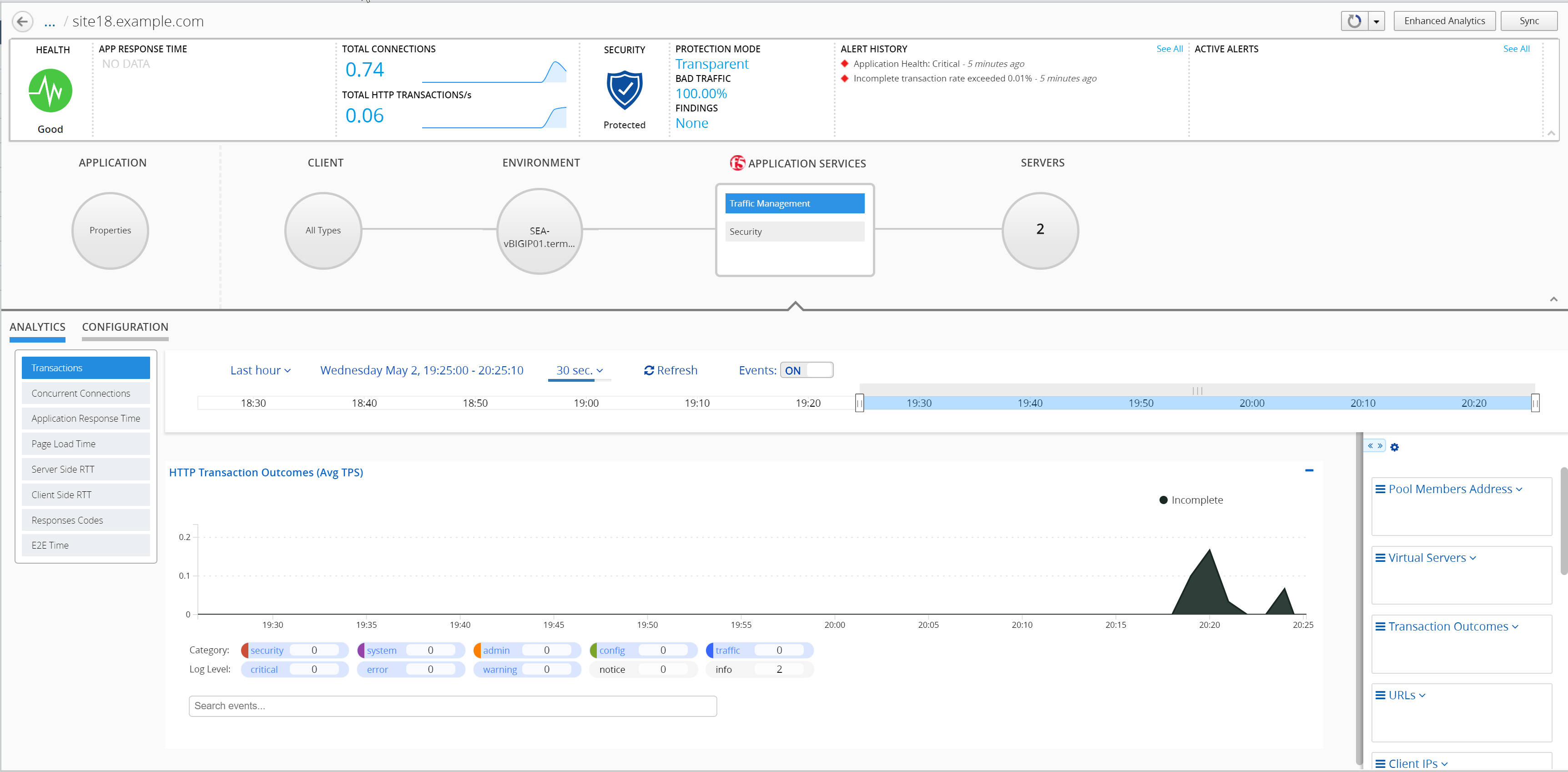
Click on Traffic Management >> Configuration
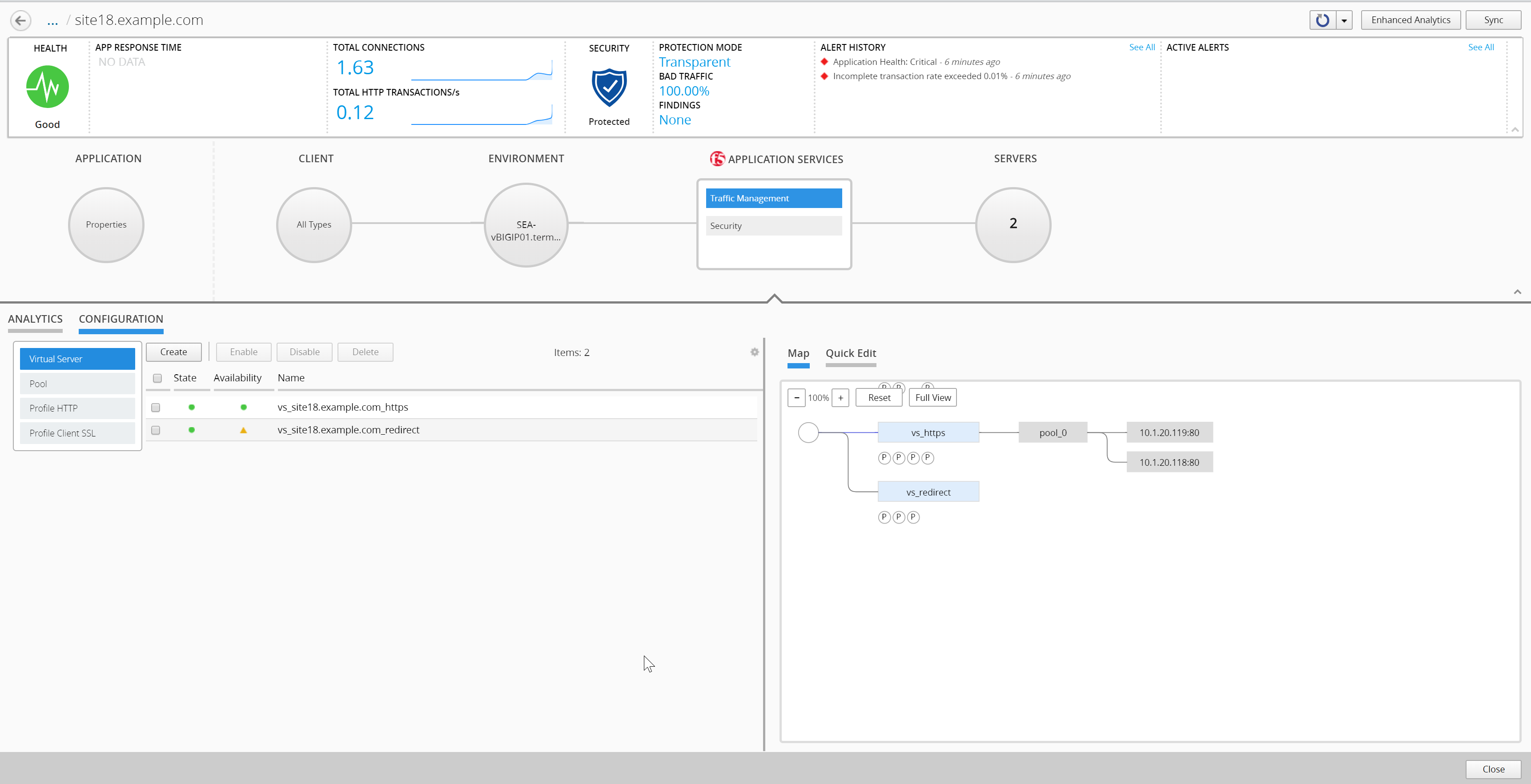
Note
A traffic generator located on the Ubuntu Lamp Server server, is sending traffic every minute to the virtual servers.
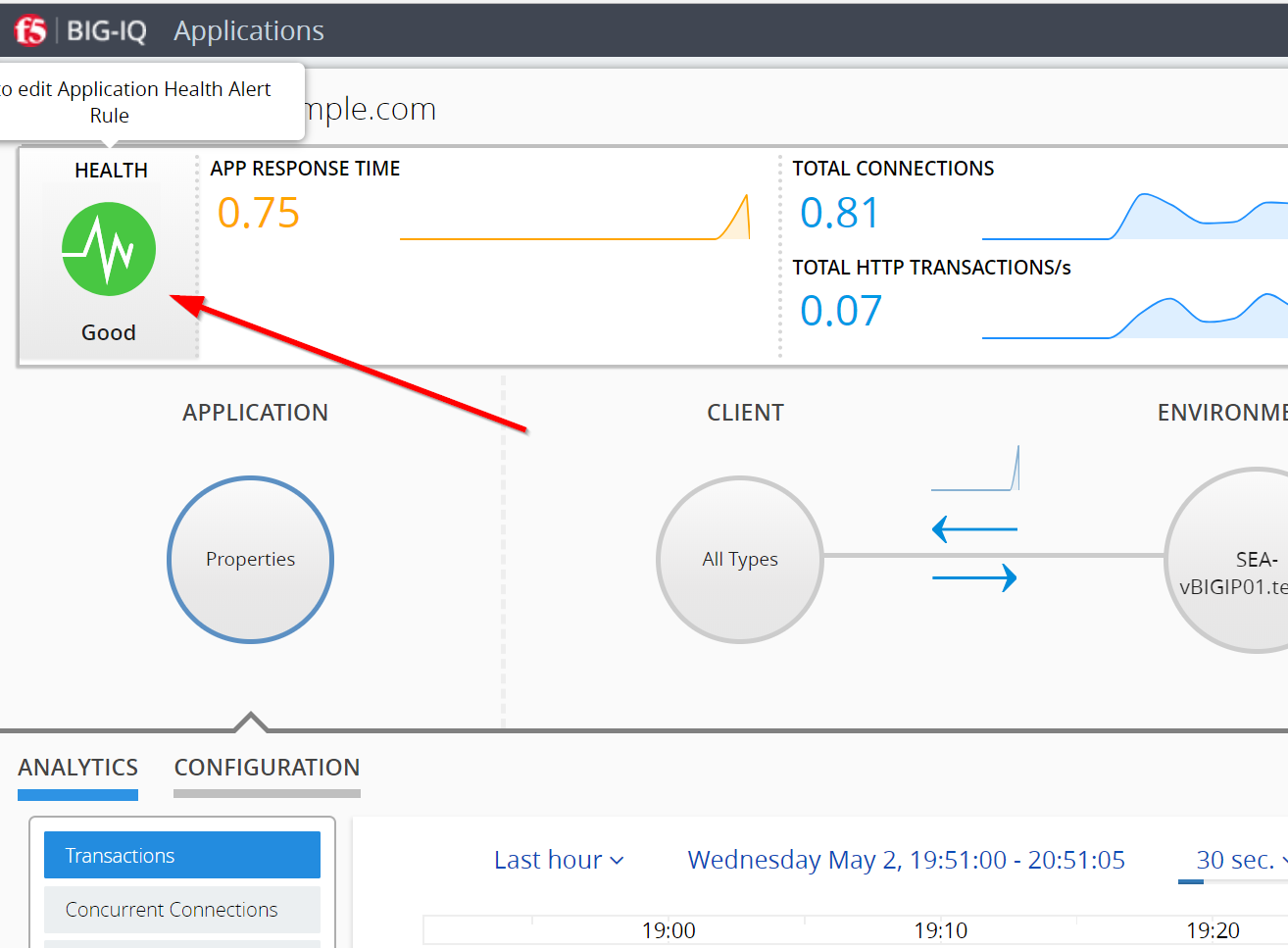
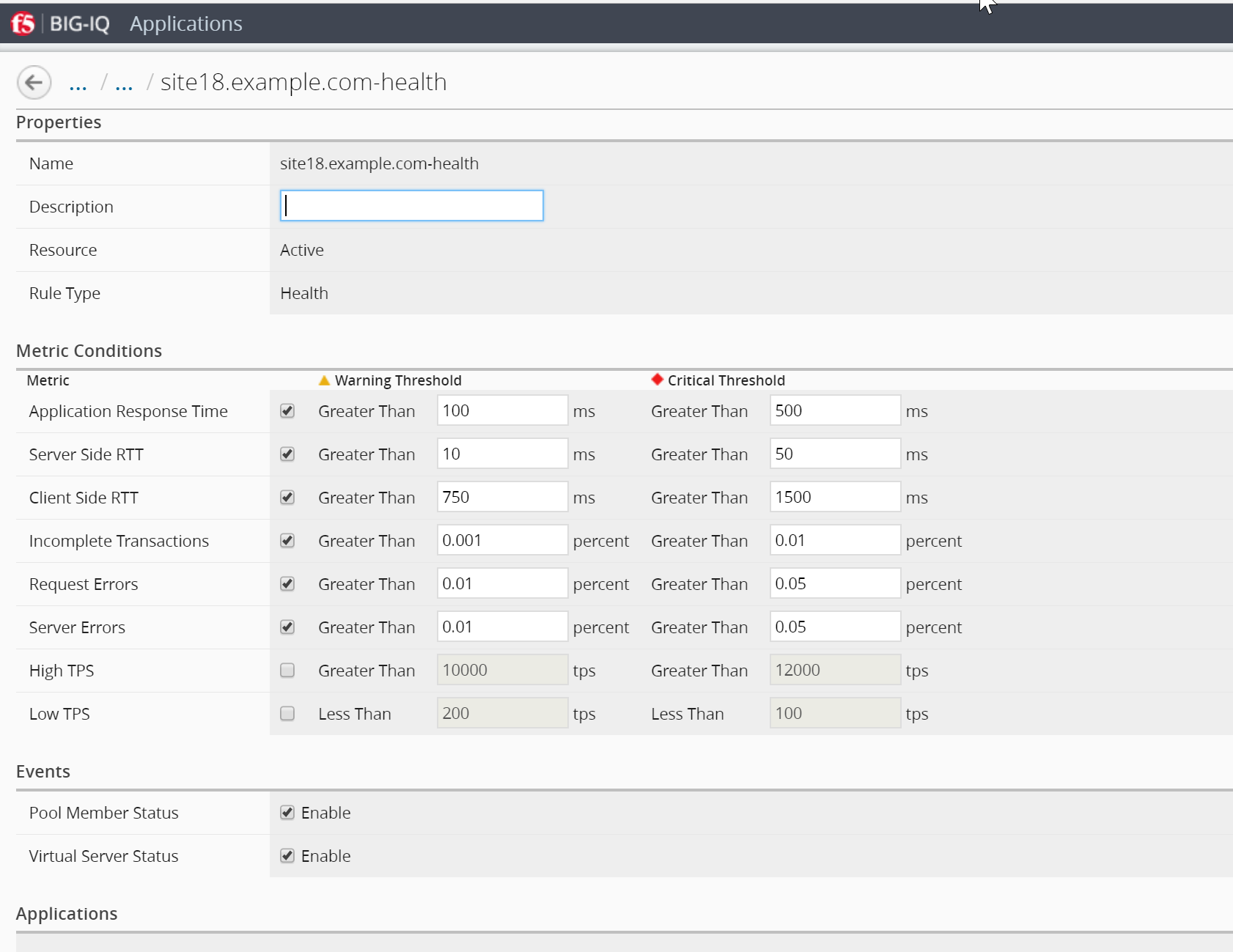
Paula can update Application Health Alert Rules by clicking on the Health Icon on the top left of the Application Dashboard.
Login to the BIG-IP (SEA-vBIGIP01) with username: admin and password: agility and view the Virtual Servers you just deployed using an application template.
Note
Take a 5 to 10 minute break as we wait for analytics to build for this deployment to be reviewed in the next lab