Step 2: Create a backup schedule
Now, we can create our backup schedule that references this dynamic group.
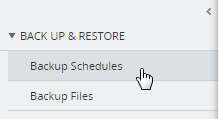
- Click on the Back Up & Restore on the left-hand menu
- Click on Backup Schedules
- Click the Create button in the main pane
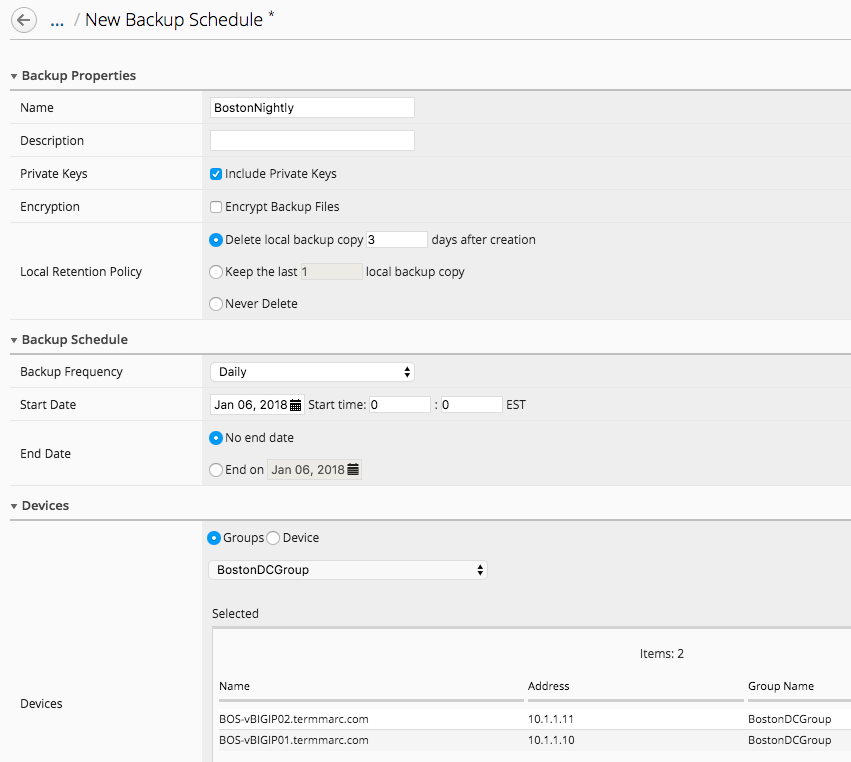
- Fill out the Backup Schedule
| Name | BostonNightly |
|---|---|
| Local Retention Policy | Delete local backup copy 3 days after creation |
| Backup Frequency | Daily |
| Start Time | 00:00 Eastern Standard Time |
Under Devices, select the Groups radio button
Select from the drop-down BostonDCGroup
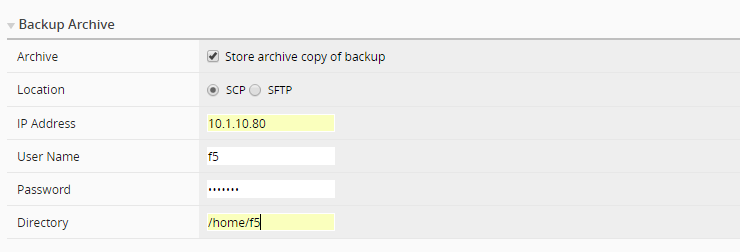
In the Backup Archive section, enter the following:
| Archive | Store Archive Copy of Backup |
|---|---|
| Location | SCP |
| User name | F5 |
| Password | default |
| Directory | /home/f5 |
Click Save & Close to save the scheduled backup job.