Lab 1: Create Custom Security Policies
Connect as larry
- Create the custom ASM policy, go to Configuration > SECURITY > Web Application Security > policies.
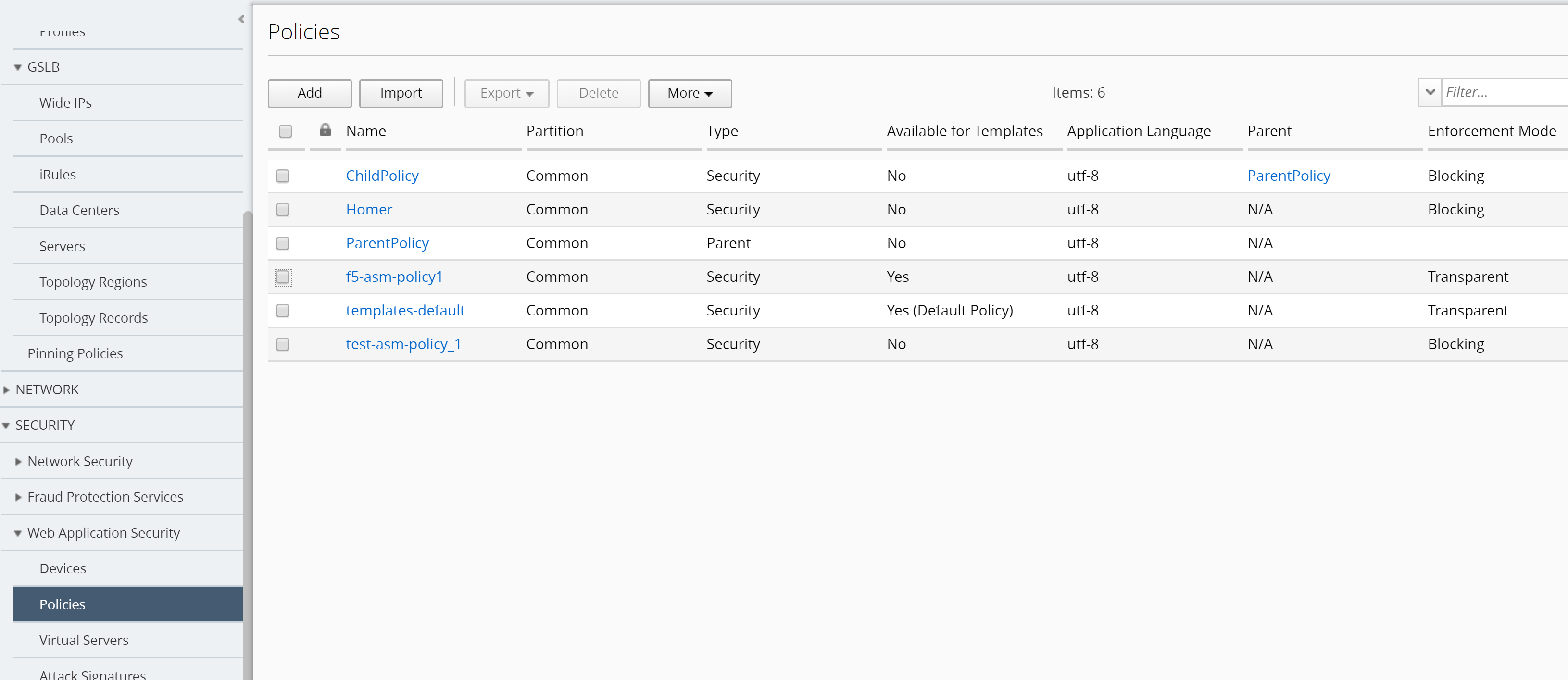
Select the viol_subviol ASM policy from the list and look through its settings. Notice the policy is in Transparent mode.
Edit the Policy viol_subviol, switch to Manual Learning Mode and Make available in Application Templates, click Save.
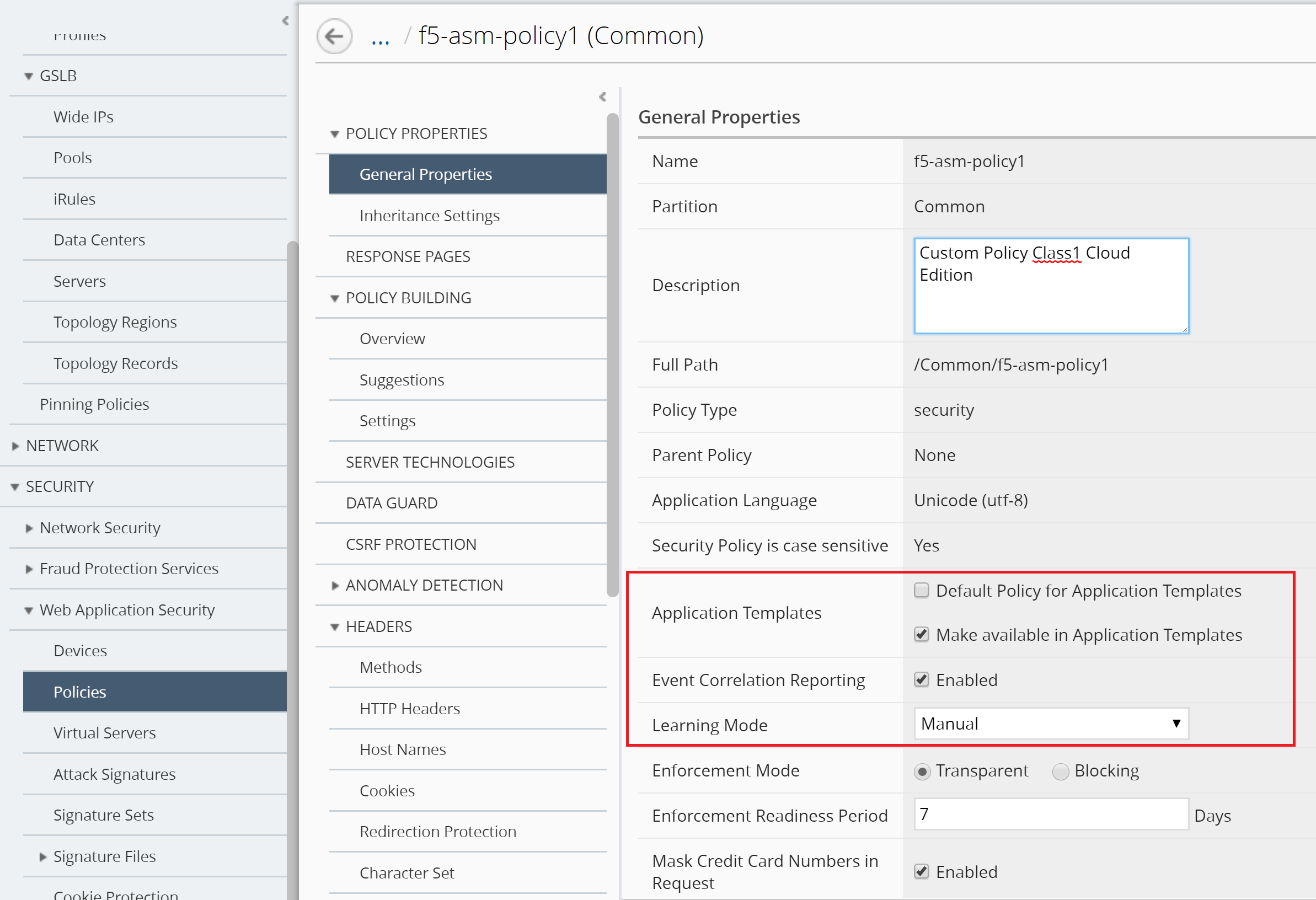
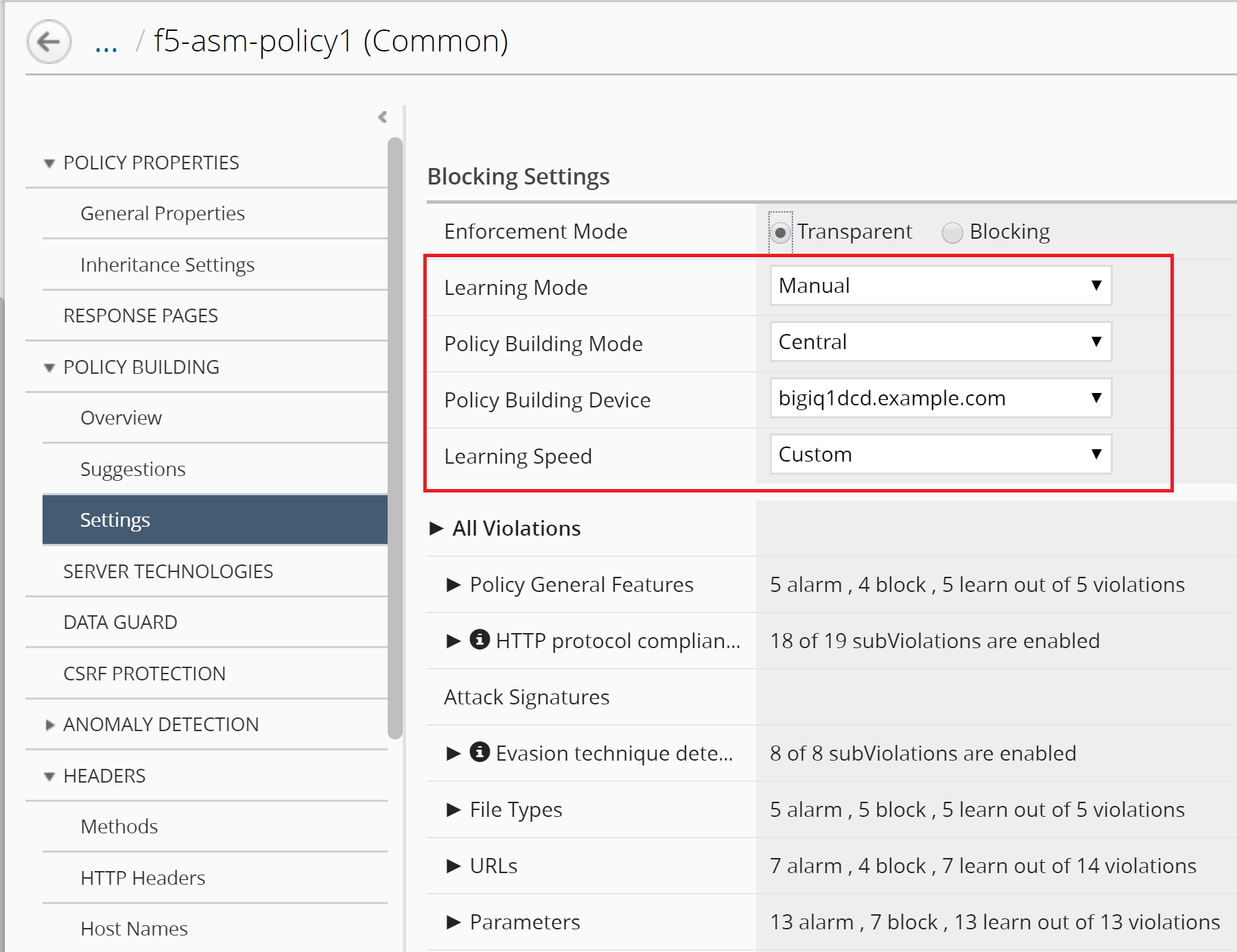
In addition, go to POLICY BUILDING > Settings and set Policy Building Mode to Central and switch to Manual Learning Mode, click Save & Close.
Note
If you want to use learning/blocking mode, you will need a dedicated app template per application.
- Create the AFM Policy, go to Configuration > SECURITY > Network Security > Firewall Policies, click Create. Then enter the name of your policy: f5-afm-policy1. Make sure the box Make available in Application Templates is checked. Click Save.
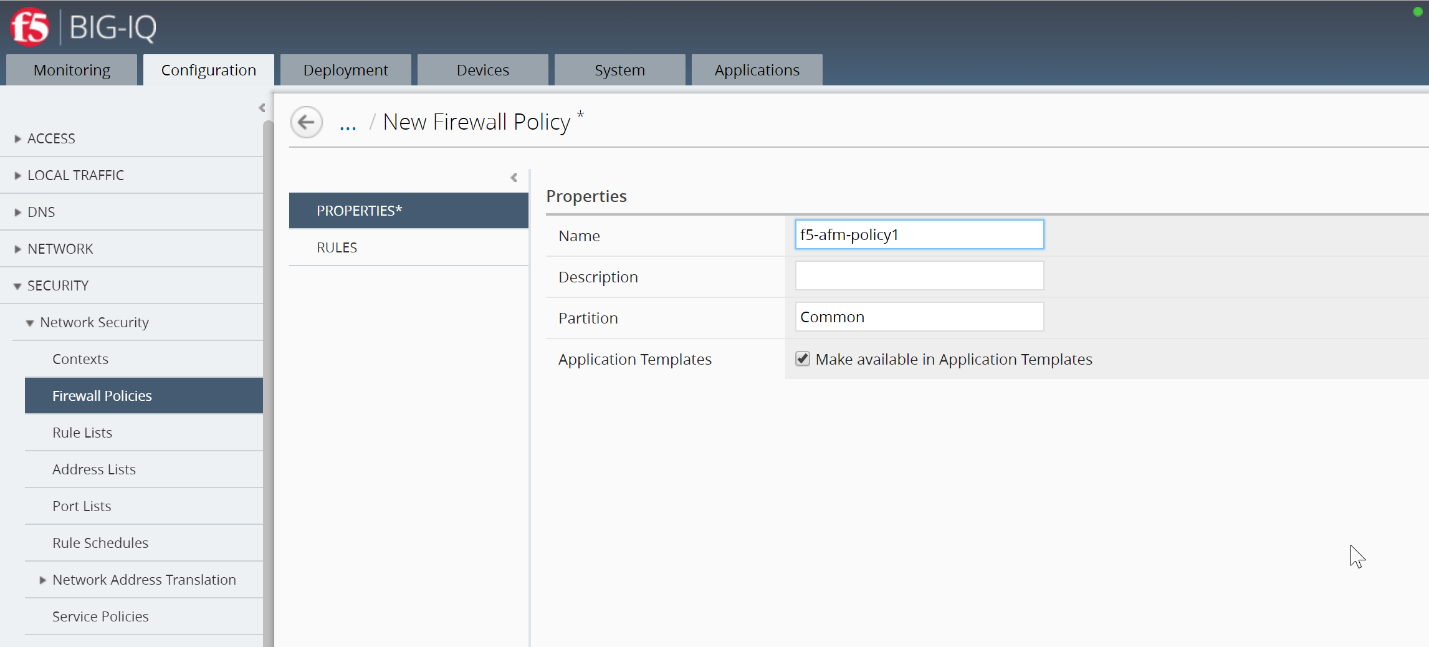
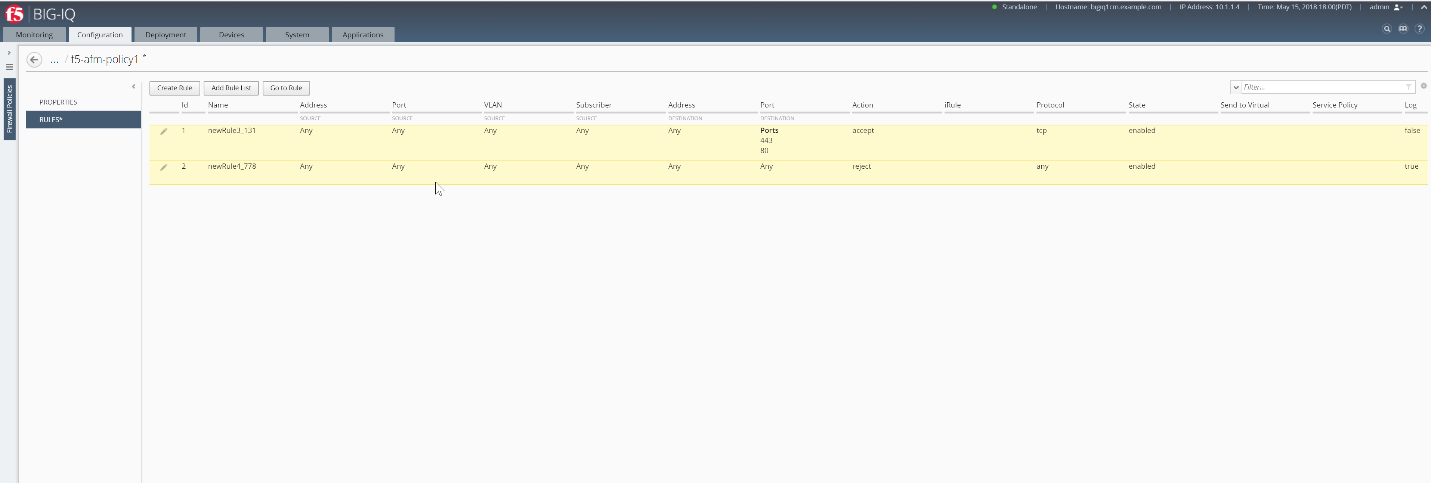
Create 2 Rules by clicking on the “Create Rule” button and then the pencil icon at the beginning of each rule.
Use the “add” button in each column under the title to:
- rule 1: set the destination ports to 443 and 80, Protocol to tcp
- rule 2: set action to reject and log to true
Click Save & Close.
Now that we have created our own ASM & AFM security policies, we can proceed to create our own Application Service Template that consists of these two security policies.